Claude Code in Action
- Introduction
- Prepare
- Install
- How to use
- Get started
- Common workflows
- Update Claude Code
- Uninstall Claude Code
- News
- MiniMax (国产)
- 在 Claude Code 中使用 MiniMax-M2.1
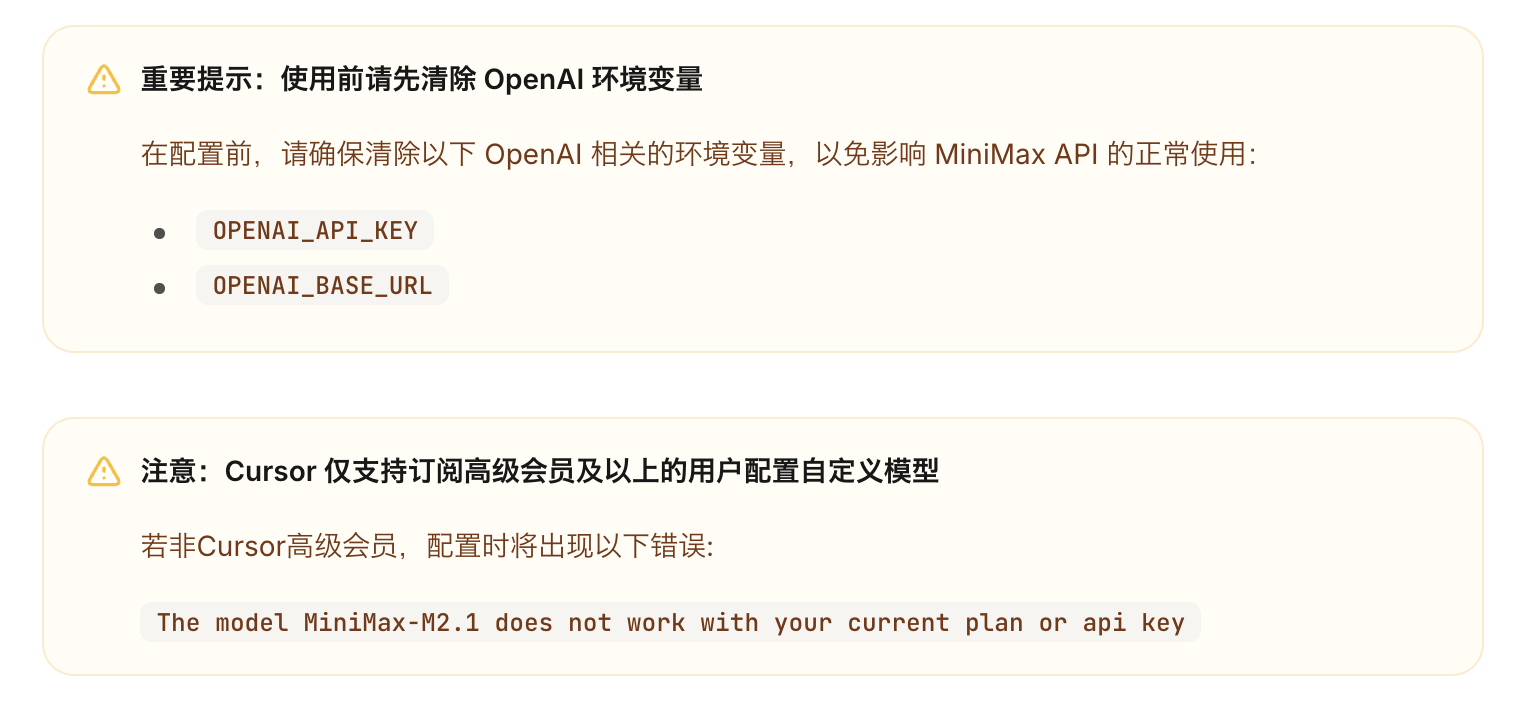
- 在 Cursor 中使用 MiniMax-M2.1
- Interactive mode
- Slash commands
- CLI reference
- Claude Code MCP
- Subagents
- Agent Skills
- Q&A
- 使用参考
- Changelog
- Refer
Introduction
Claude Code is an agentic coding tool that lives in your terminal, understands your codebase, and helps you code faster by executing routine tasks, explaining complex code, and handling git workflows – all through natural language commands. Use it in your terminal, IDE, or tag @claude on Github.
Learn more in the official documentation.
Claude is a highly performant, trustworthy, and intelligent AI platform built by Anthropic. Claude excels at tasks involving language, reasoning, analysis, coding, and more.

The latest generation of Claude models:
- Claude Opus 4.5 - Most intelligent model, and an industry-leader for coding, agents, and computer use. Learn more.
- Claude Sonnet 4.5 - Balanced performance and practicality for most uses, including coding and agents. Learn more.
- Claude Haiku 4.5 - Fastest model with near-frontier intelligence. Learn more.

What Claude Code does for you
-
Build features from descriptions: Tell Claude what you want to build in plain English. It will make a plan, write the code, and ensure it works.
-
Debug and fix issues: Describe a bug or paste an error message. Claude Code will analyze your codebase, identify the problem, and implement a fix.
-
Navigate any codebase: Ask anything about your team’s codebase, and get a thoughtful answer back. Claude Code maintains awareness of your entire project structure, can find up-to-date information from the web, and with MCP can pull from external datasources like
Google Drive,Figma, andSlack. -
Automate tedious tasks: Fix fiddly lint issues, resolve merge conflicts, and write release notes. Do all this in a single command from your developer machines, or automatically in CI.
Why developers love Claude Code
-
Works in your terminal:
Not another chat window. Not another IDE. Claude Code meets you where you already work, with the tools you already love. -
Takes action: Claude Code can directly edit files, run commands, and create commits. Need more? MCP lets Claude read your design docs in Google Drive, update your tickets in Jira, or use your custom developer tooling.
-
Unix philosophy: Claude Code is composable and scriptable.
tail -f app.log | claude -p "Slack me if you see any anomalies appear in this log stream" works.
Your CI can run claude -p "If there are new text strings, translate them into French and raise a PR for @lang-fr-team to review".
- Enterprise-ready: Use Anthropic’s API, or host on
AWSorGCP. Enterprise-grade security, privacy, and compliance is built-in.
Prepare
System requirements
- Operating Systems: macOS 10.15+, Ubuntu 20.04+/Debian 10+, or Windows 10+ (with WSL 1, WSL 2, or Git for Windows)
- Hardware: 4GB+ RAM
- Software: Node.js 18+
- Network: Internet connection required for authentication and AI processing
- Shell: Works best in
Bash,ZshorFish - Location: Anthropic supported countries
Install
Native Install (Recommended)
macOS, Linux, WSL:
curl -fsSL https://claude.ai/install.sh | bash
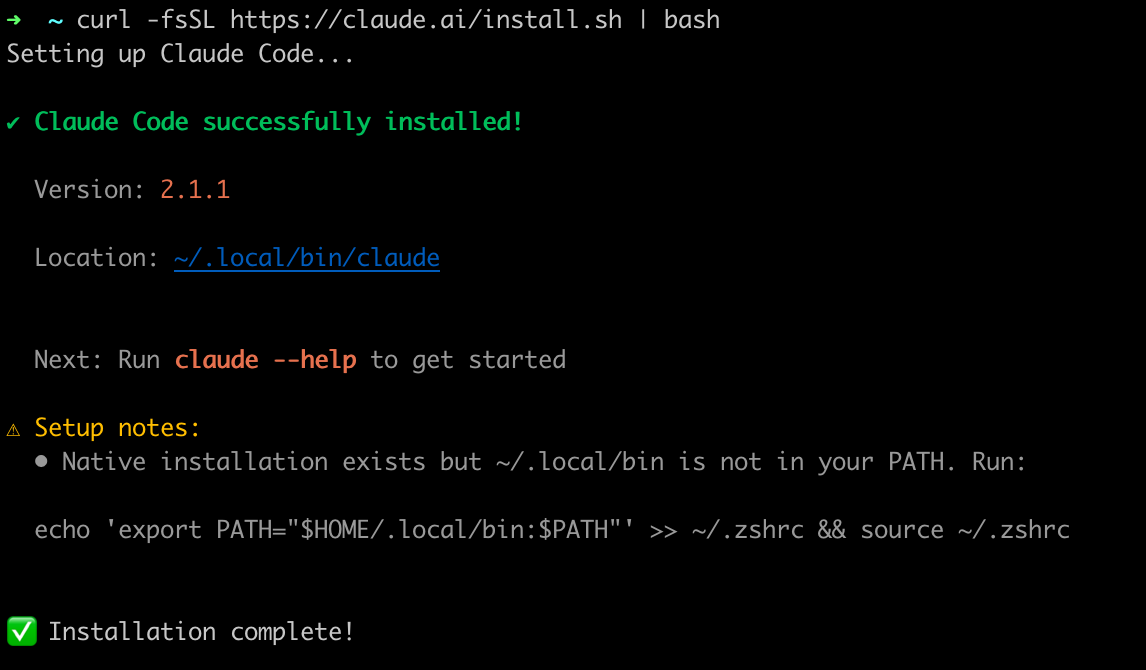
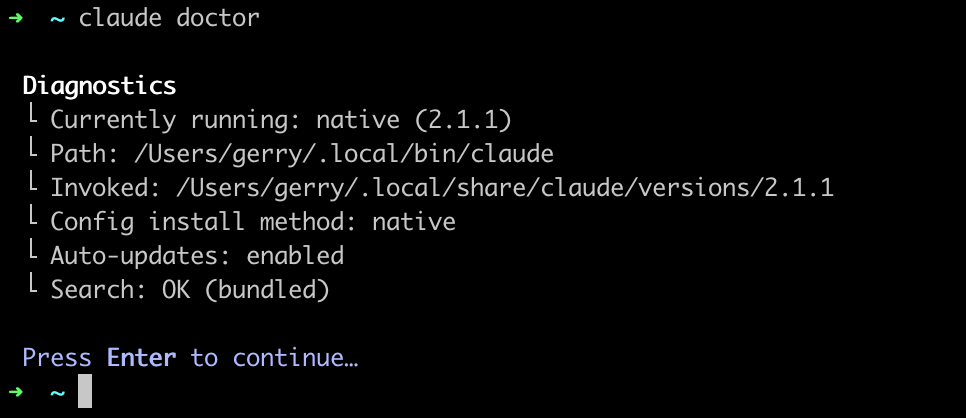
echo 'export PATH="$HOME/.local/bin:$PATH"' >> ~/.zshrc && source ~/.zshrc
➜  ~ claude --help
Usage: claude [options] [command] [prompt]

Claude Code - starts an interactive session by default, use -p/--print for non-interactive output

Arguments:
  prompt                                            Your prompt

Options:
  --add-dir <directories...>                        Additional directories to allow tool access to
  --agent <agent>                                   Agent for the current session. Overrides the 'agent'
                                                    setting.
...
NPM 方式
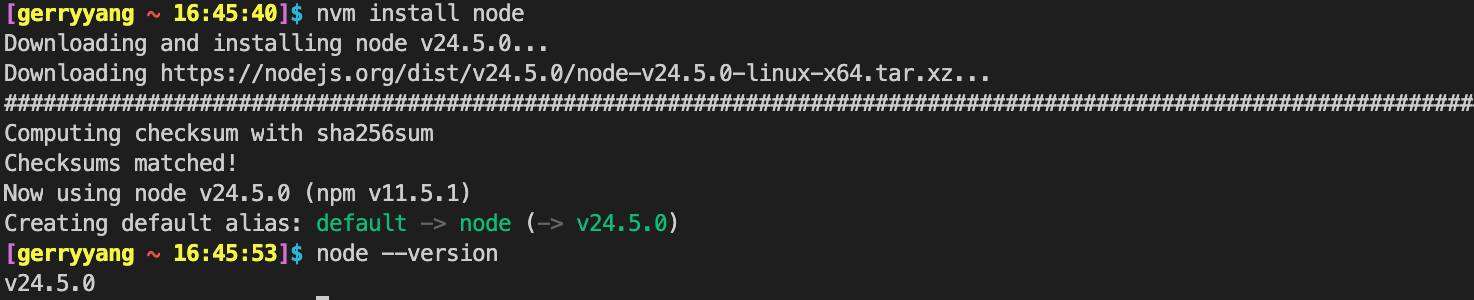
Install nvm
refer: Installing nodejs and npm on linux
I really recommend you install node and npm using nvm (Node Version Manager). This is the fastest, cleanest and easiest way to do it.
To install or update nvm, you should run the install script. To do that, you may either download and run the script manually, or use the following cURL or Wget command:
curl -o- https://raw.githubusercontent.com/nvm-sh/nvm/v0.40.3/install.sh | bash

wget -qO- https://raw.githubusercontent.com/nvm-sh/nvm/v0.40.3/install.sh | bash
Running either of the above commands downloads a script and runs it. The script clones the nvm repository to ~/.nvm, and attempts to add the source lines from the snippet below to the correct profile file (~/.bashrc, ~/.bash_profile, ~/.zshrc, or ~/.profile). If you find the install script is updating the wrong profile file, set the $PROFILE env var to the profile file’s path, and then rerun the installation script.
export NVM_DIR="$([ -z "${XDG_CONFIG_HOME-}" ] && printf %s "${HOME}/.nvm" || printf %s "${XDG_CONFIG_HOME}/nvm")"
[ -s "$NVM_DIR/nvm.sh" ] && \. "$NVM_DIR/nvm.sh" # This loads nvm
最后执行 . .bashrc 使得 nvm 环境设置生效。
$ nvm -h

Node Version Manager (v0.40.3)

Note: <version> refers to any version-like string nvm understands. This includes:
  - full or partial version numbers, starting with an optional "v" (0.10, v0.1.2, v1)
  - default (built-in) aliases: node, stable, unstable, iojs, system
  - custom aliases you define with `nvm alias foo`

 Any options that produce colorized output should respect the `--no-colors` option.

Usage:
  nvm --help                                  Show this message

...
And you are now able to install node typing:
nvm install <version>
For example
nvm install 4.2.1
If you just want to install the latest node version, you can just type
nvm install node
Install Claude Code
参考:https://code.claude.com/docs/en/setup
# Install Claude Code
npm install -g @anthropic-ai/claude-code

# Navigate to your project
cd your-awesome-project

# Start coding with Claude
claude
Note: Do NOT use
sudo npm install -gas this can lead to permission issues and security risks. If you encounter permission errors, see configure Claude Code for recommended solutions.Some users may be automatically migrated to an improved installation method. Run
claude doctorafter installation to check your installation type.
Got specific setup needs or hit issues? See advanced setup or troubleshooting.
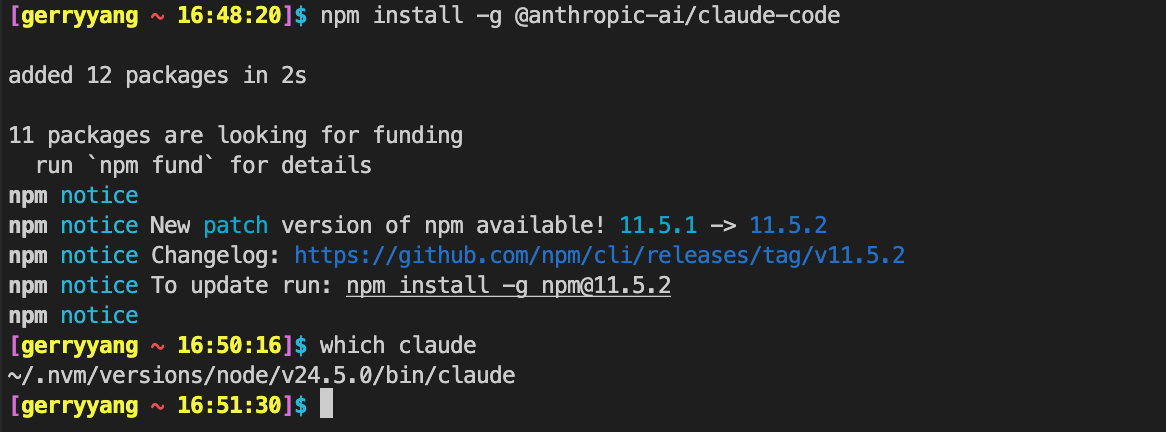
$ ls -l ~/.nvm/versions/node/v24.5.0/bin/claude
lrwxrwxrwx 1 gerryyang users 52 Aug  6 16:50 /data/home/gerryyang/.nvm/versions/node/v24.5.0/bin/claude -> ../lib/node_modules/@anthropic-ai/claude-code/cli.js
How to use
After the installation process completes, navigate to your project and start Claude Code:
cd your-awesome-project
claude
Claude Code offers the following authentication options:
-
Anthropic Console: The default option. Connect through the Anthropic Console and complete the OAuth process. Requires active billing at console.anthropic.com.
-
Claude App (with Pro or Max plan): Subscribe to Claude’s Pro or Max plan for a unified subscription that includes both Claude Code and the web interface. Get more value at the same price point while managing your account in one place. Log in with your Claude.ai account. During launch, choose the option that matches your subscription type.
-
Enterprise platforms: Configure Claude Code to use Amazon Bedrock or Google Vertex AI for enterprise deployments with your existing cloud infrastructure.
Claude Code securely stores your credentials. See Credential Management for details.
Get started
Prerequisites
- An Anthropic Console account
- An API key
Call the API
- Set your API key
Get your API key at the Claude Console and set it as an environment variable:
export ANTHROPIC_API_KEY='your-api-key-here'
- Make your first API call
Run this command to create a simple web search assistant:
curl https://api.anthropic.com/v1/messages \
  -H "Content-Type: application/json" \
  -H "x-api-key: $ANTHROPIC_API_KEY" \
  -H "anthropic-version: 2023-06-01" \
  -d '{
    "model": "claude-sonnet-4-5",
    "max_tokens": 1000,
    "messages": [
      {
        "role": "user",
        "content": "What should I search for to find the latest developments in renewable energy?"
      }
    ]
  }'
Example output:
{
  "id": "msg_01HCDu5LRGeP2o7s2xGmxyx8",
  "type": "message",
  "role": "assistant",
  "content": [
    {
      "type": "text",
      "text": "Here are some effective search strategies to find the latest renewable energy developments:\n\n## Search Terms to Use:\n- \"renewable energy news 2024\"\n- \"clean energy breakthrough\"\n- \"solar/wind/battery technology advances\"\n- \"green energy innovations\"\n- \"climate tech developments\"\n- \"energy storage solutions\"\n\n## Best Sources to Check:\n\n**News & Industry Sites:**\n- Renewable Energy World\n- GreenTech Media (now Wood Mackenzie)\n- Energy Storage News\n- CleanTechnica\n- PV Magazine (for solar)\n- WindPower Engineering & Development..."
    }
  ],
  "model": "claude-sonnet-4-5",
  "stop_reason": "end_turn",
  "usage": {
    "input_tokens": 21,
    "output_tokens": 305
  }
}
Common workflows
参考:https://code.claude.com/docs/en/common-workflows
Learn about common workflows with Claude Code.
Update Claude Code
Auto updates
Claude Code automatically keeps itself up to date to ensure you have the latest features and security fixes.
- Update checks: Performed on startup and periodically while running
- Update process: Downloads and installs automatically in the background
- Notifications: You’ll see a notification when updates are installed
- Applying updates: Updates take effect the next time you start Claude Code
Disable auto-updates
# Via configuration
claude config set autoUpdates false --global

# Or via environment variable
export DISABLE_AUTOUPDATER=1
Update manually
claude update
Uninstall Claude Code
If you need to uninstall Claude Code, follow the instructions for your installation method.
Native installation
Remove the Claude Code binary and version files:
macOS, Linux, WSL:
rm -f ~/.local/bin/claude
rm -rf ~/.local/share/claude
NPM installation
npm uninstall -g @anthropic-ai/claude-code
Clean up configuration files (optional)
Removing configuration files will delete all your settings, allowed tools, MCP server configurations, and session history.
To remove Claude Code settings and cached data:
# Remove user settings and state
rm -rf ~/.claude
rm ~/.claude.json

# Remove project-specific settings (run from your project directory)
rm -rf .claude
rm -f .mcp.json
News
Introducing Claude Opus 4.5 (2025年11月25日)
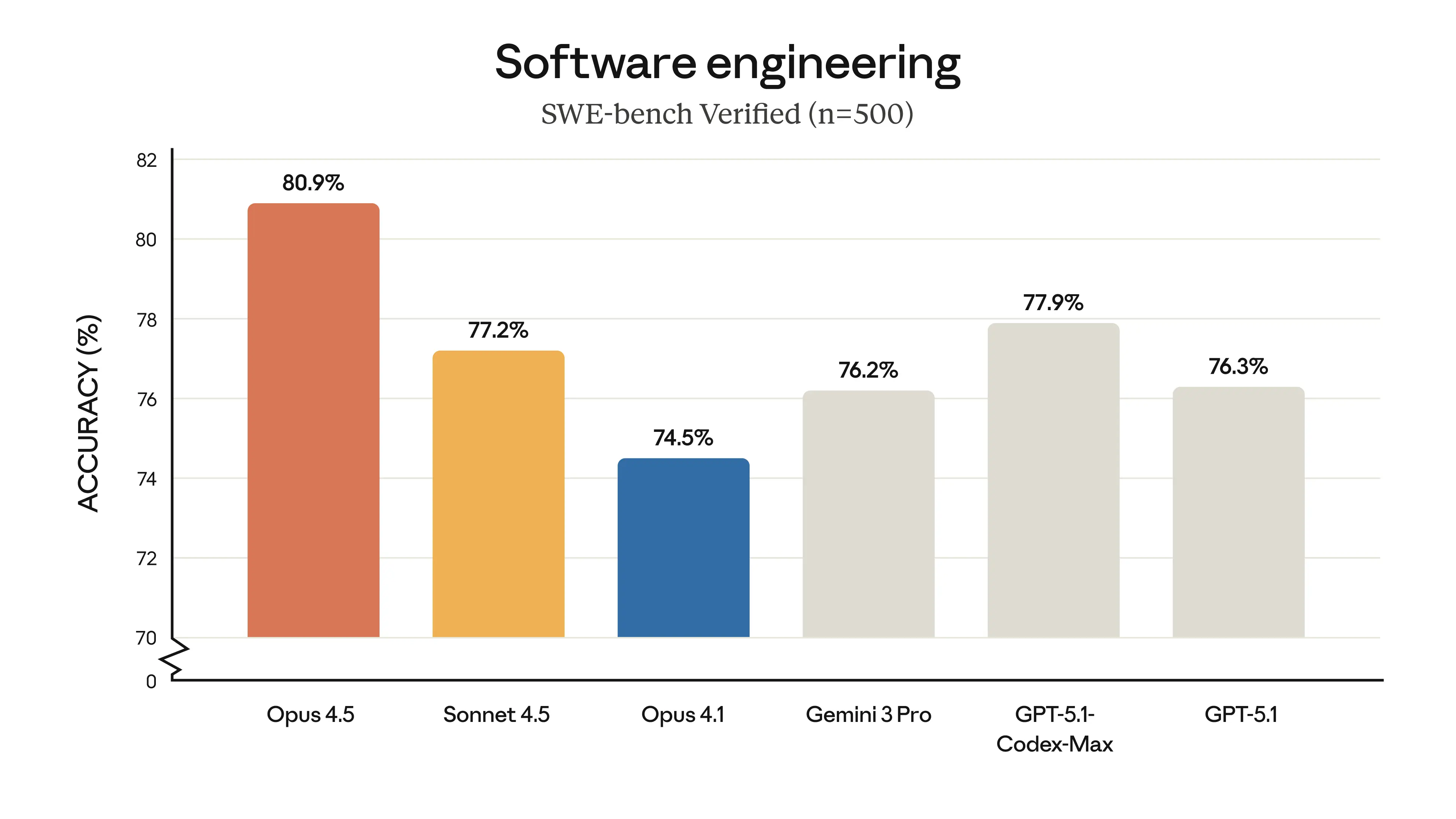
Our newest model, Claude Opus /ˈəʊpəs/ 4.5, is available today. It’s intelligent, efficient, and the best model in the world for coding, agents, and computer use. It’s also meaningfully better at everyday tasks like deep research and working with slides and spreadsheets. Opus 4.5 is a step forward in what AI systems can do, and a preview of larger changes to how work gets done.
Claude Opus 4.5 is state-of-the-art on tests of real-world software engineering:
MiniMax (国产)
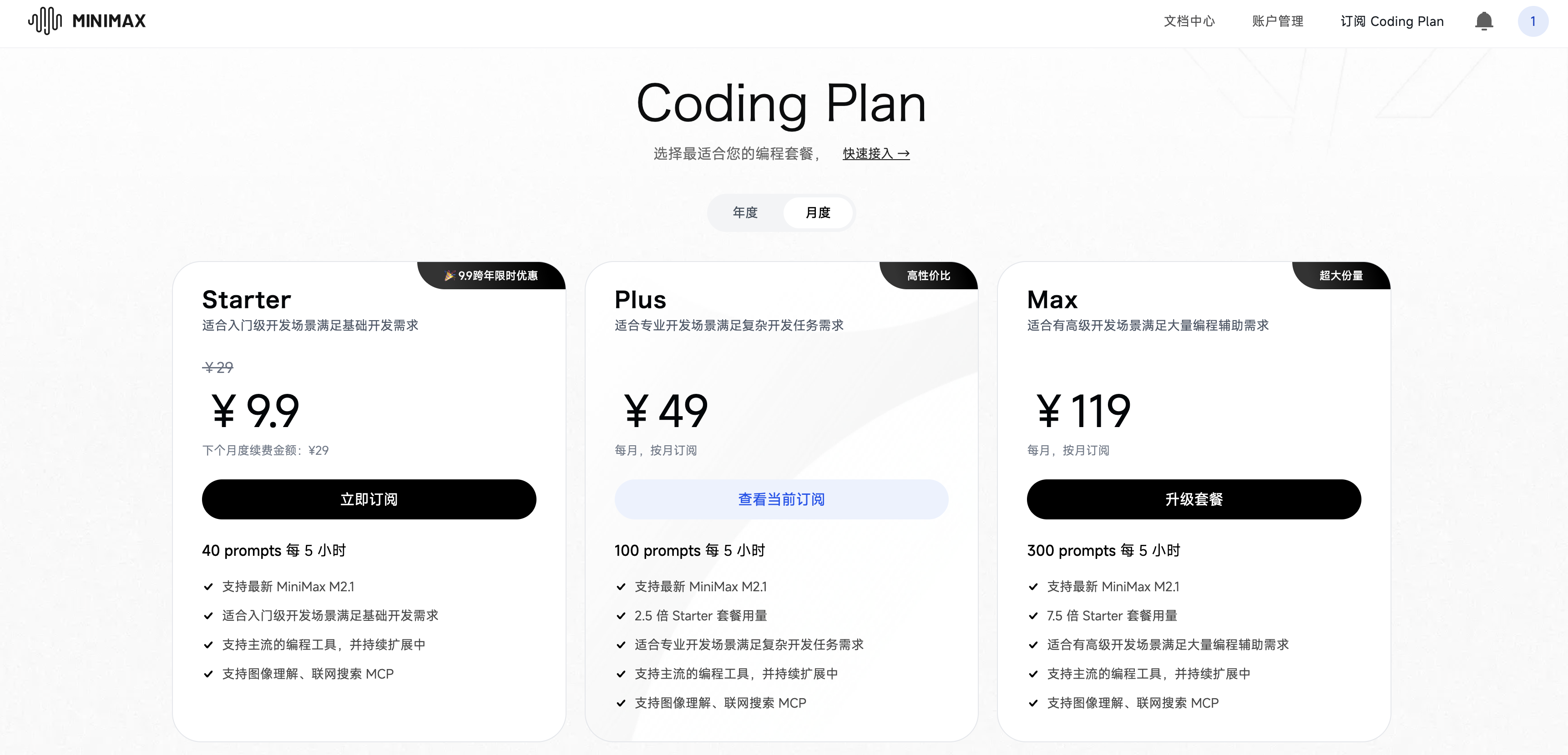
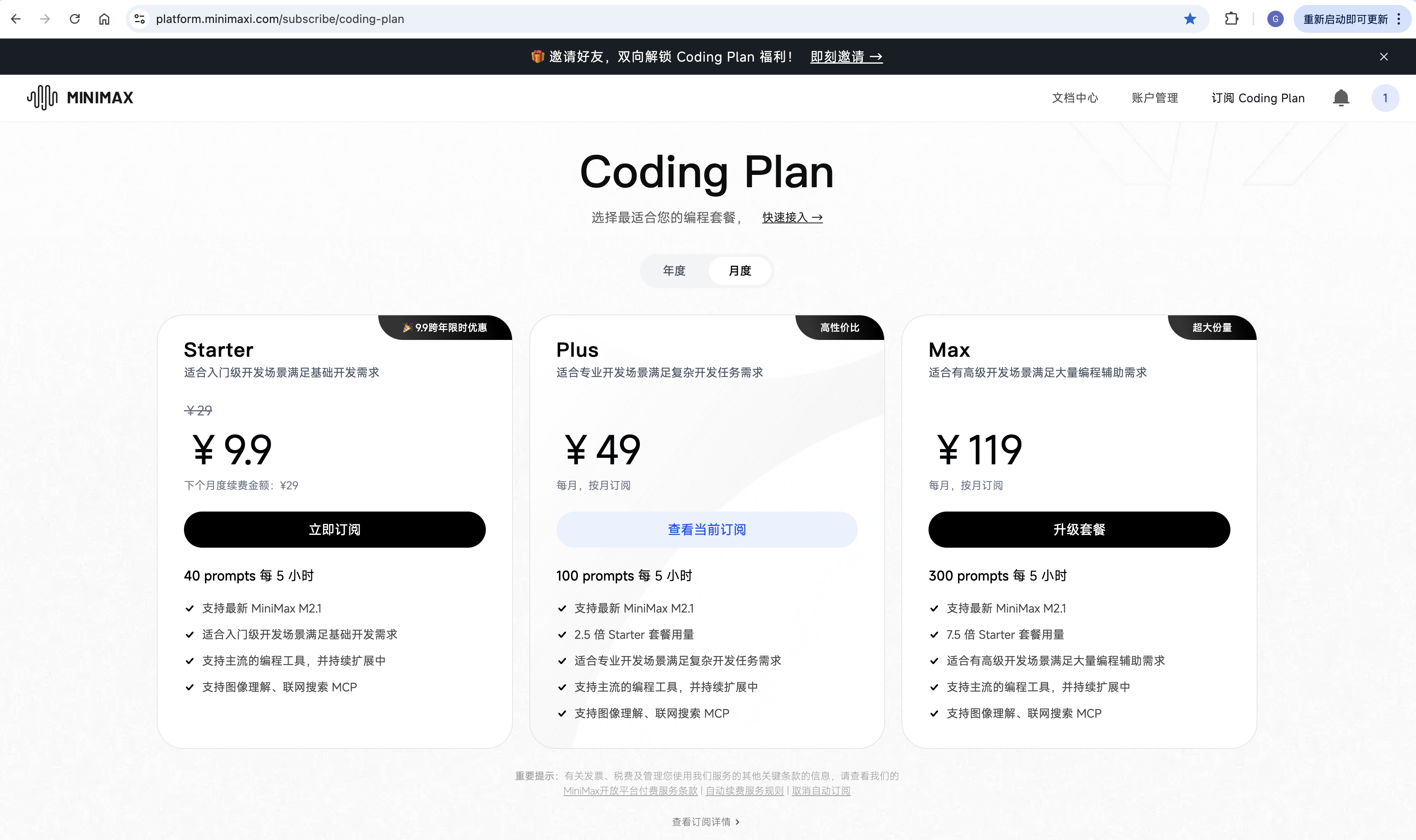
https://platform.minimaxi.com/subscribe/coding-plan
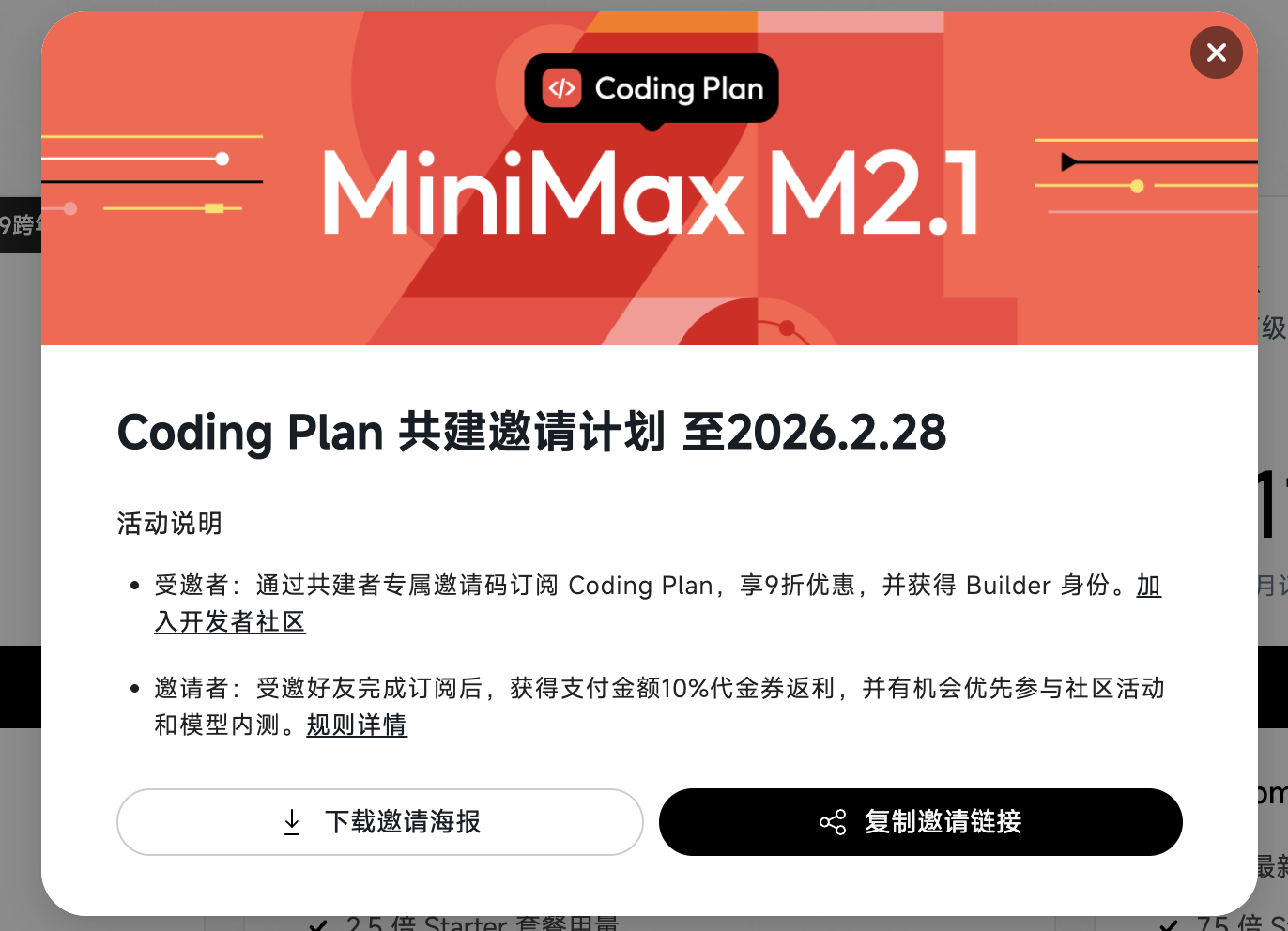
邀请码:
🎁 MiniMax 跨年福利来袭!邀好友享 Coding Plan 双重好礼,助力开发体验!
好友立享 9折 专属优惠 + Builder 权益,你赢返利 + 社区特权!
👉 立即参与:https://platform.minimaxi.com/subscribe/coding-plan?code=5XvxeGS5Uv&source=link

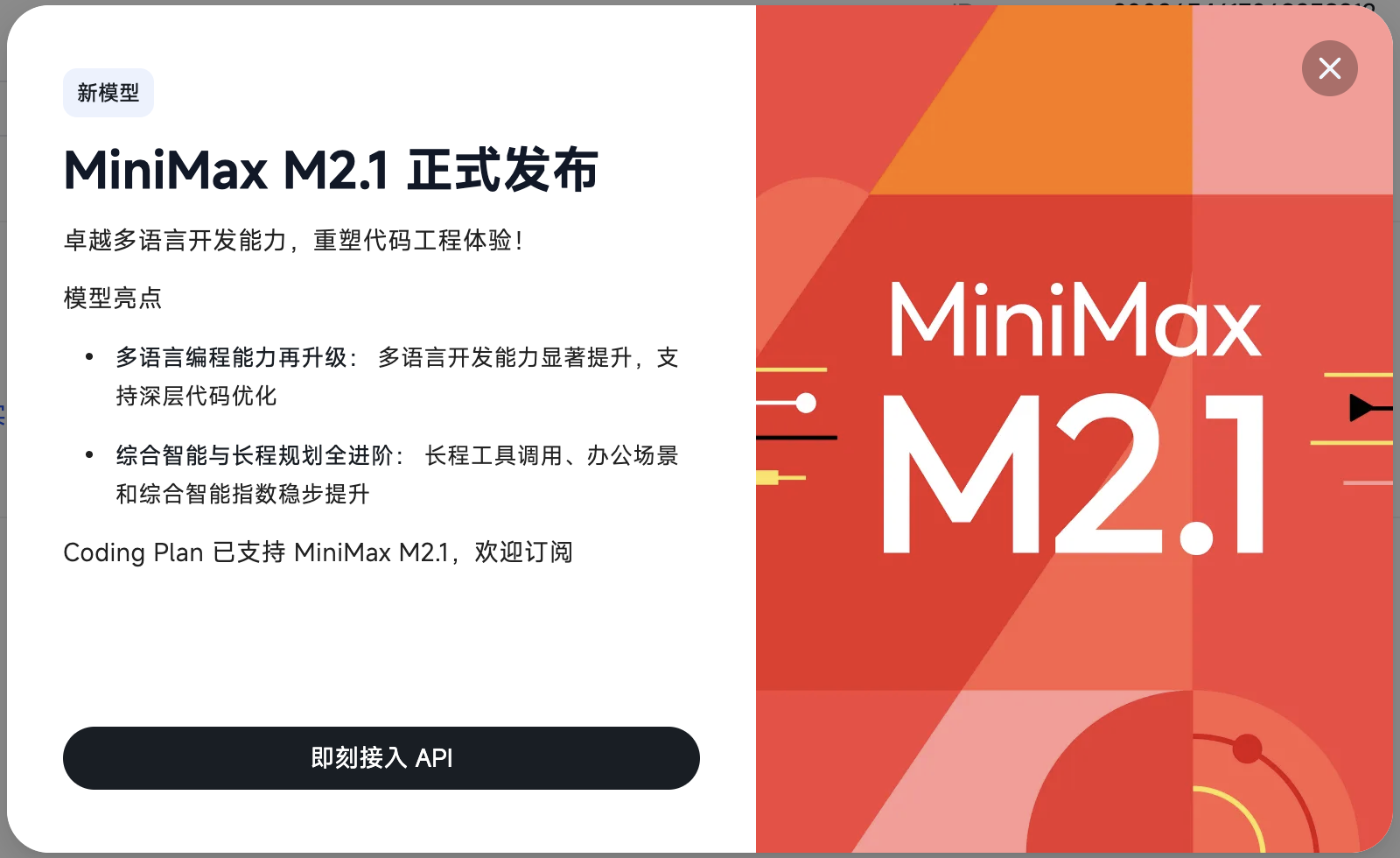
在 Claude Code 中使用 MiniMax-M2.1
参考:https://platform.minimaxi.com/docs/guides/text-ai-coding-tools
MiniMax-M2.1 & MiniMax-M2.1-lightning 兼容 OpenAI 和 Anthropic 接口协议,适用于代码助手、Agent 工具、AI IDE 等多种场景。
MiniMax 开放平台提供两种计费方案接入文本模型:Coding Plan 以及 按量计费。您可按照使用需求选择。调用计费模式取决于您所使用的 API Key,不同类型的 Key 将触发不同的计费方式。
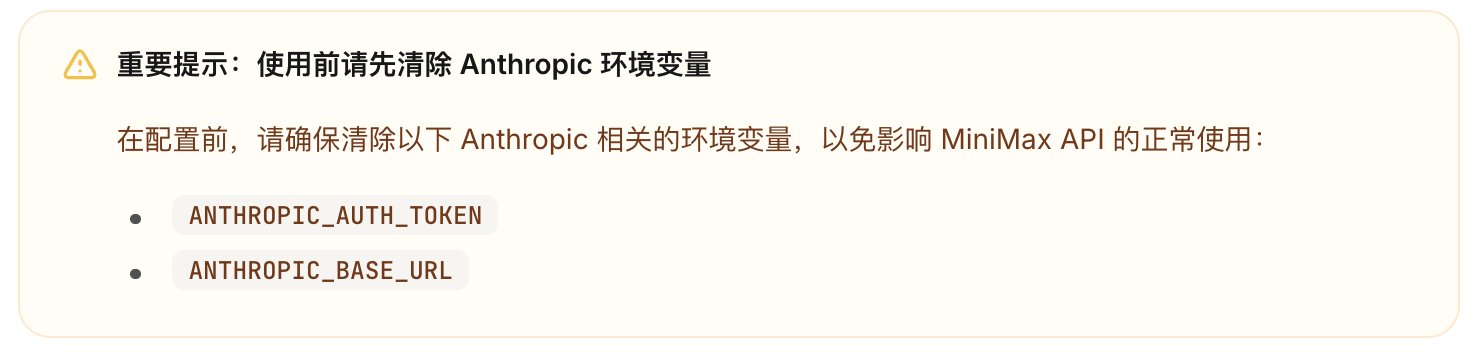
在 .bashrc 添加下面命令:
unset ANTHROPIC_AUTH_TOKEN
unset ANTHROPIC_BASE_URL
安装 Claude Code
可参考 Claude Code 文档 进行安装。
获取 API Key
Coding Plan API Key
推荐您订阅 Coding Plan, 为用户的编程提升效率。
- 访问 Coding Plan 选择最适合的编程套餐
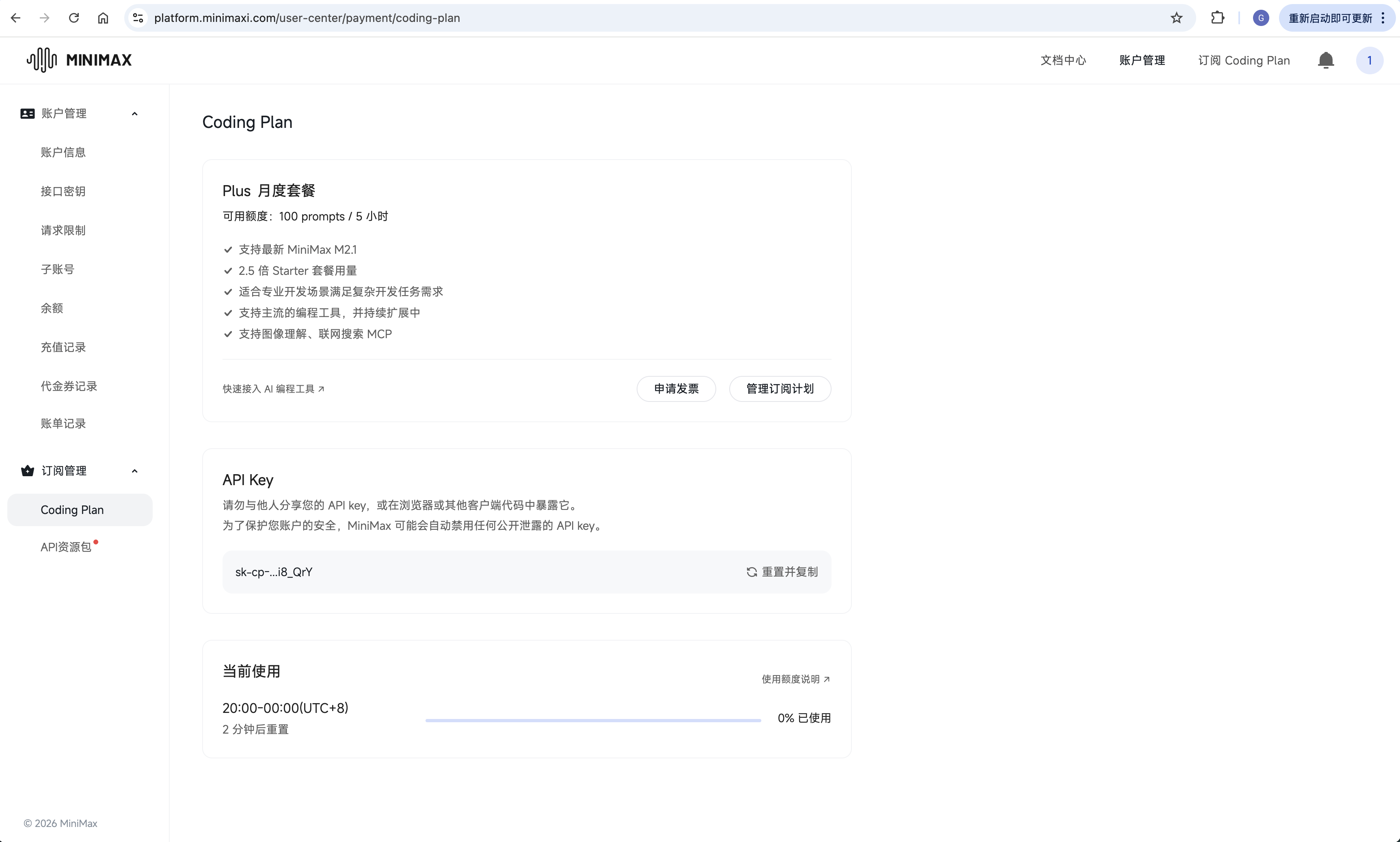
- 前往 账户管理/Conding Plan 页面,查看订阅的 Coding Plan 套餐,并获得 Coding Plan 的 API Key,用于编程工具使用。
开放平台 API Key(按量计费)
- 访问 MiniMax 开放平台 (国际用户可访问 MiniMax Developer Platform)
- 点击“创建新的密钥”按钮,输入项目名称以创建新的 API Key
- 创建成功后,系统将展示 API Key。请务必复制并妥善保存,该密钥只会显示一次,无法再次查看
配置 MiniMax API
安装 cc-switch
cc-switch 是一个便捷的工具,可以快速切换 Claude Code 的 API 配置。
macOS:
brew tap farion1231/ccswitch
brew install --cask cc-switch
brew upgrade --cask cc-switch
Windows:
前往 cc-switch GitHub Releases 页面下载最新版本的安装包。
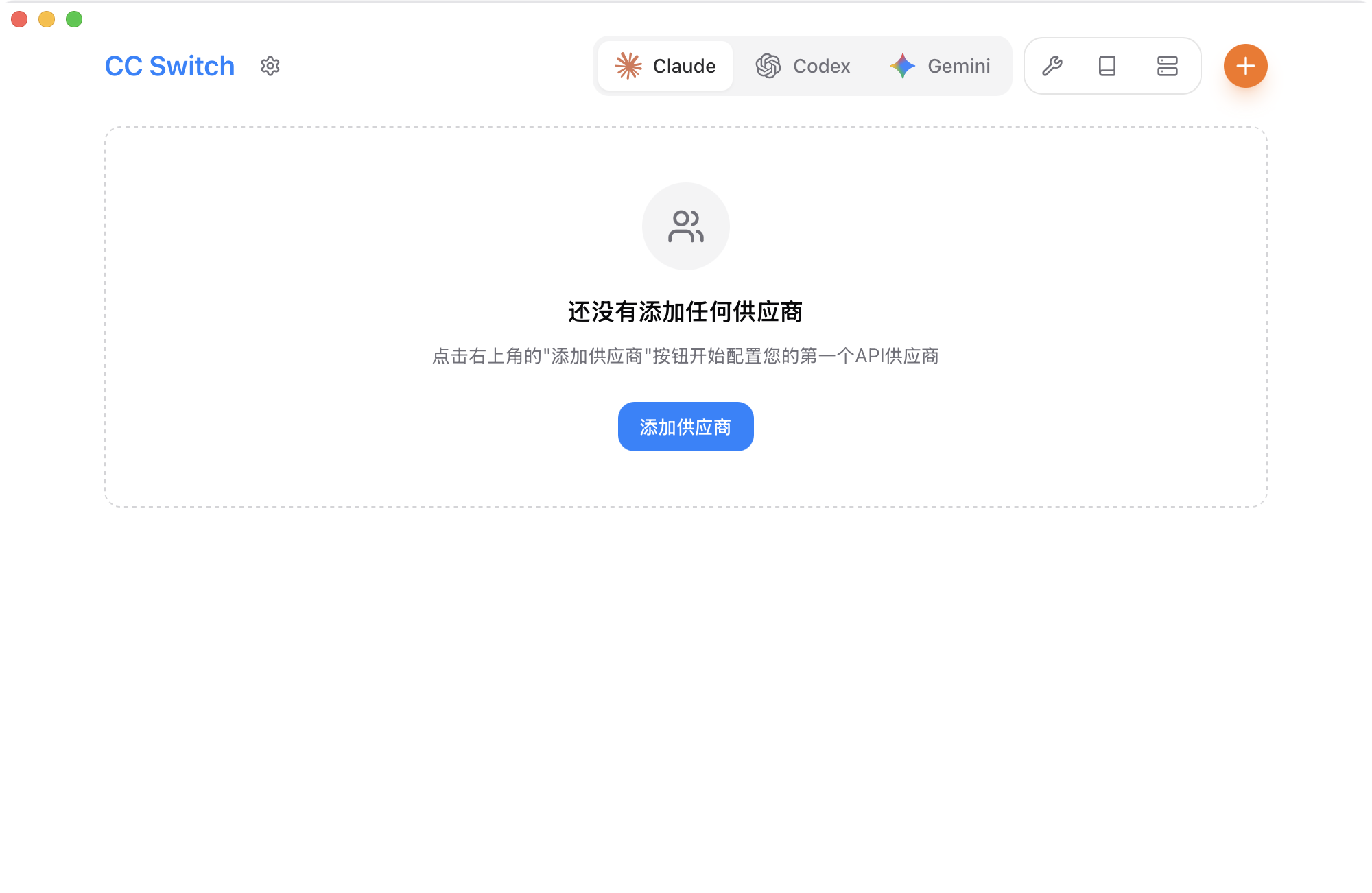
下载完成后启动 cc-switch 应用:
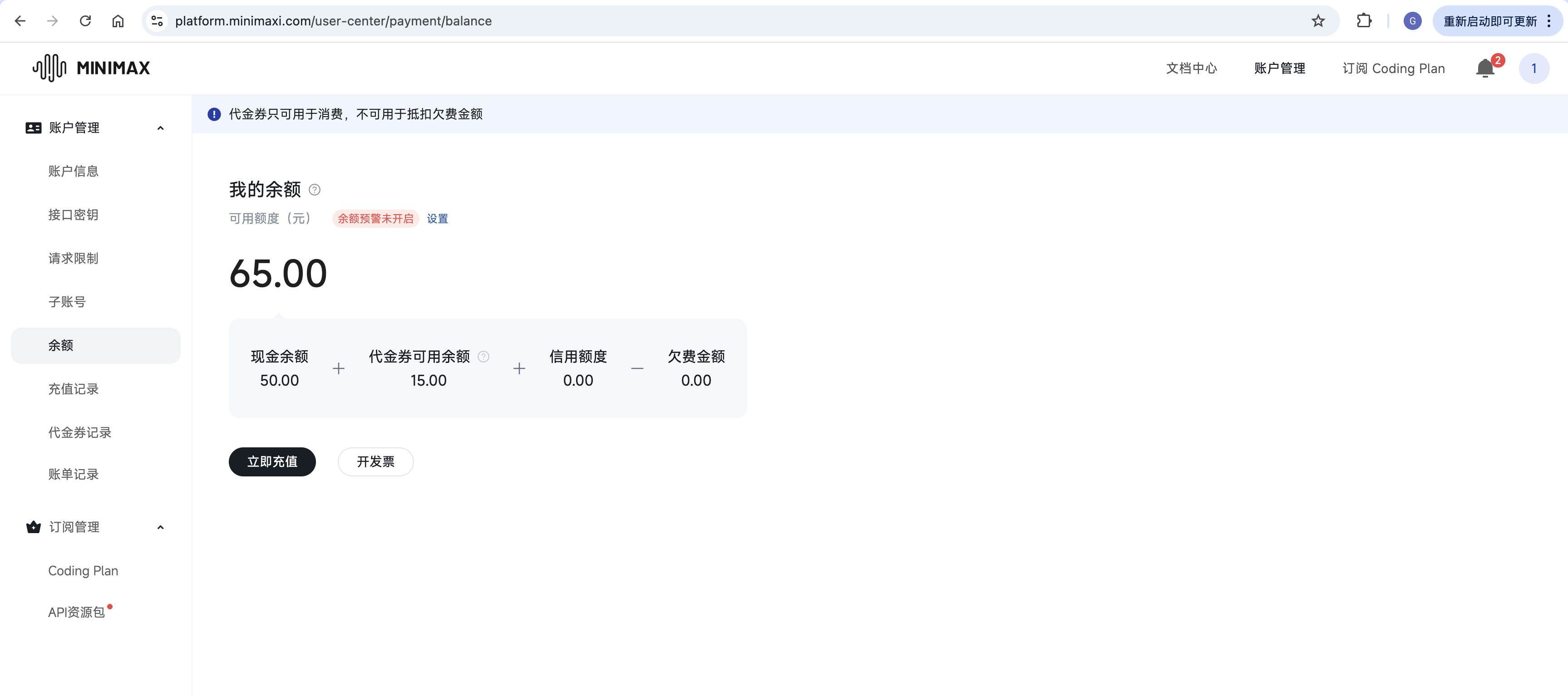
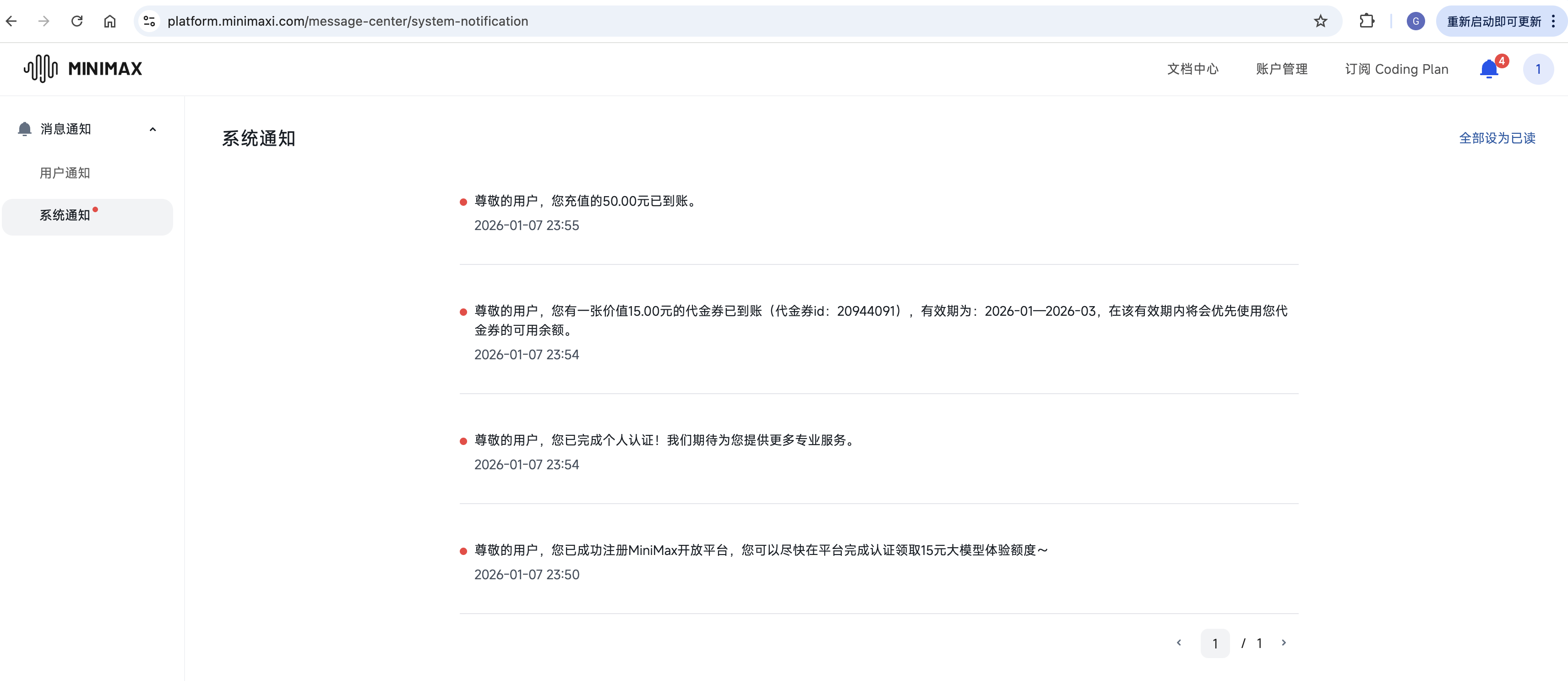
申请 MiniMax API Key
需要通过绑定银行卡进行实名认证。
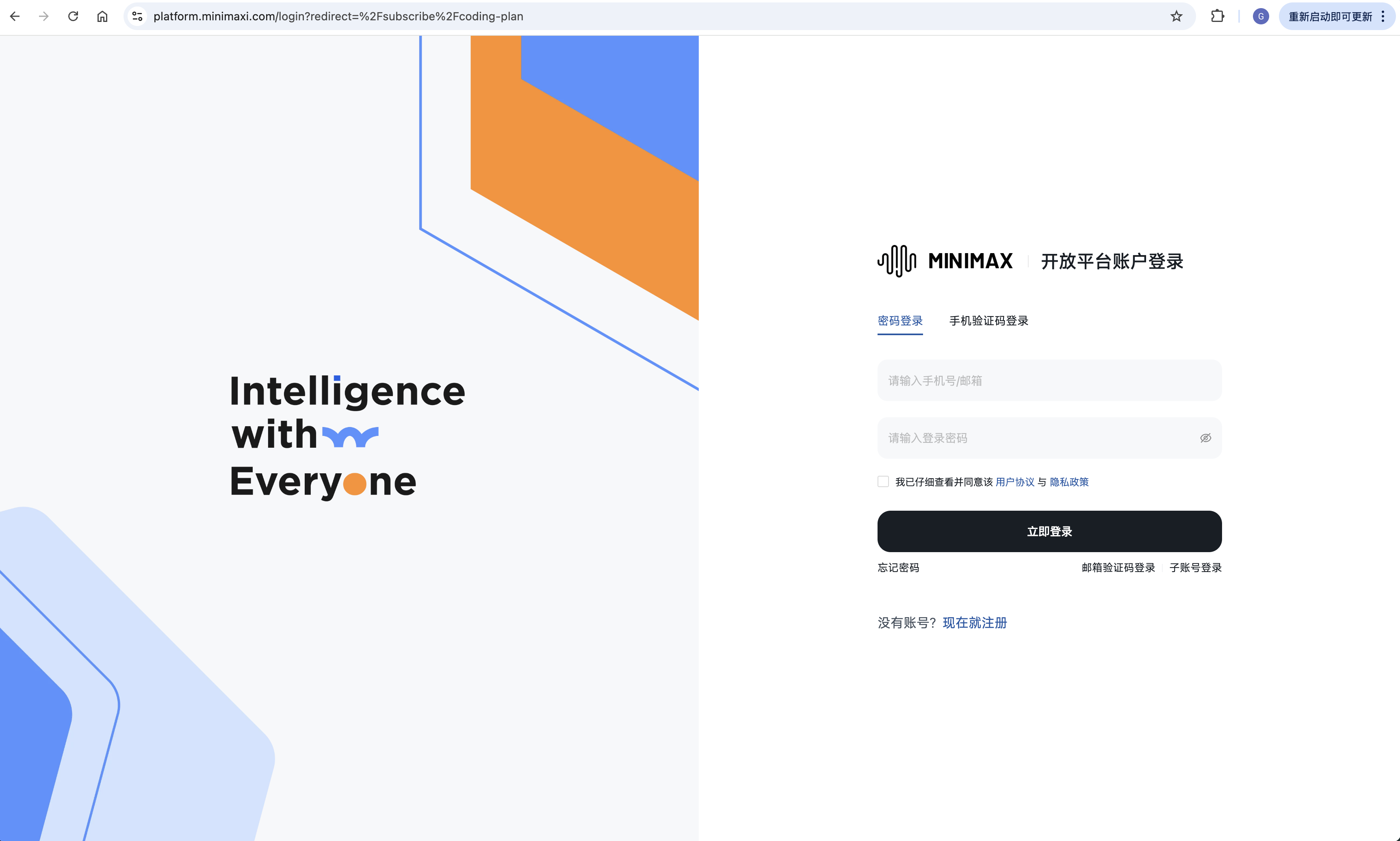
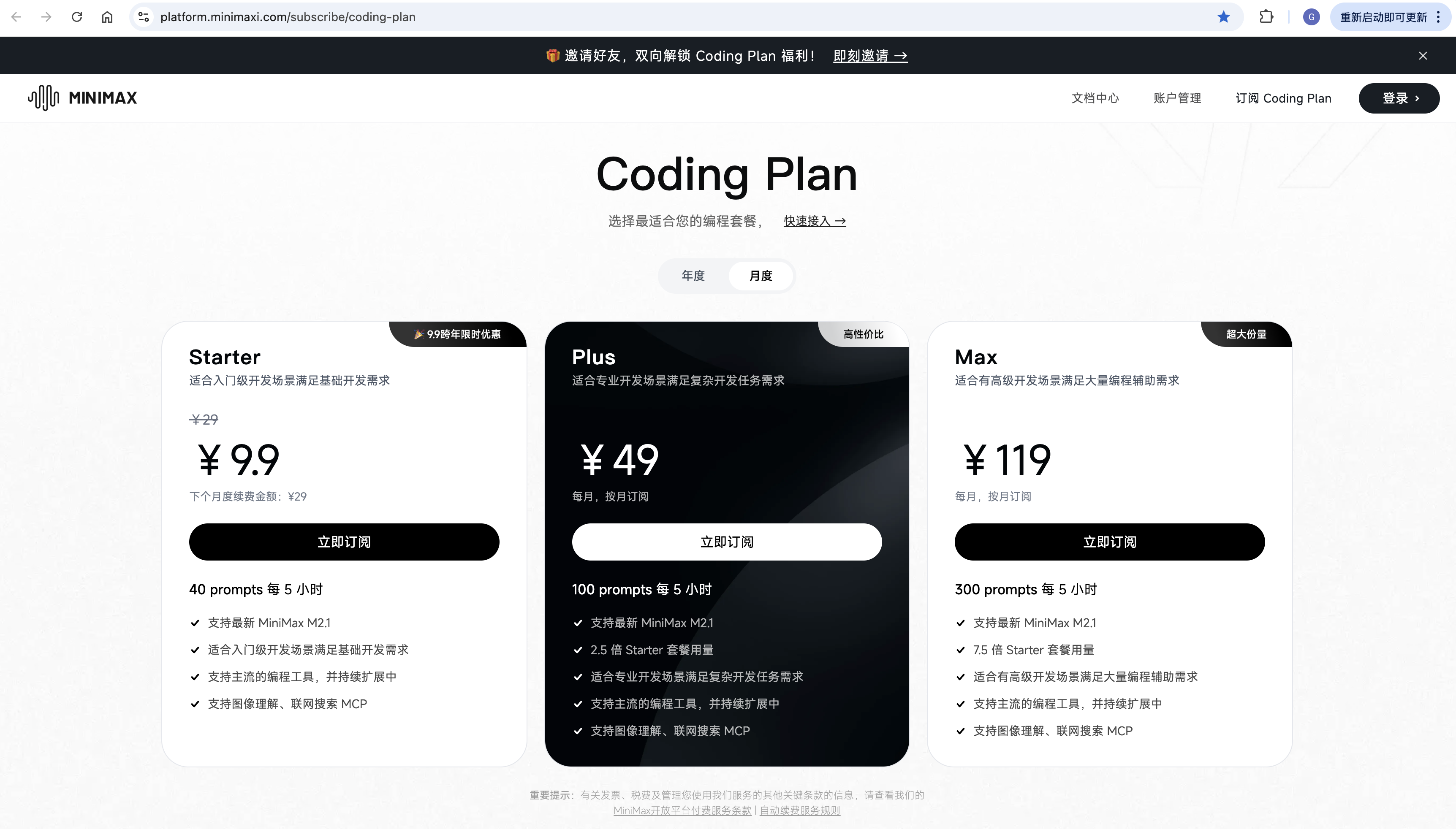
https://platform.minimaxi.com/user-center/payment/balance
添加 MiniMax 配置
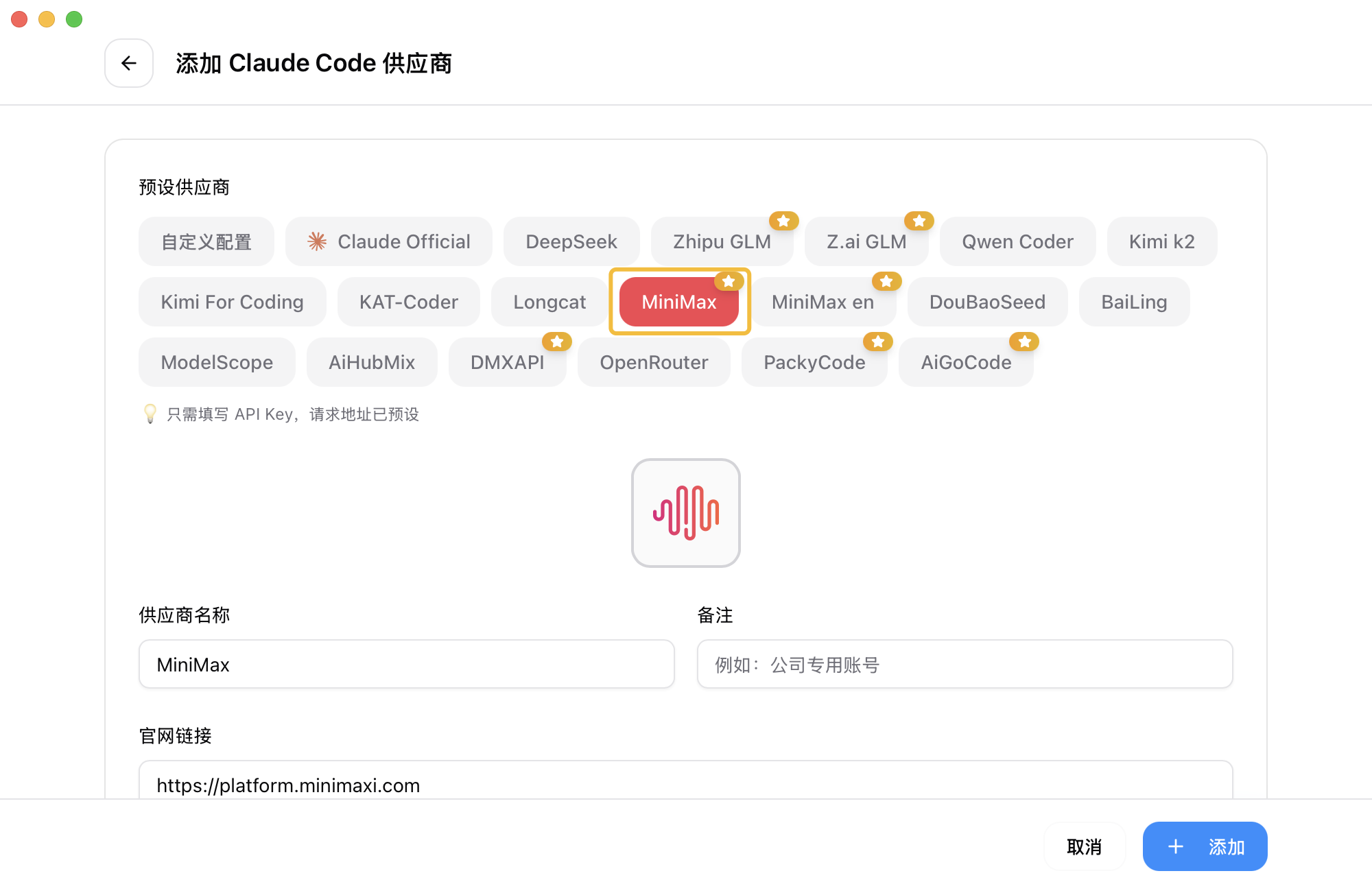
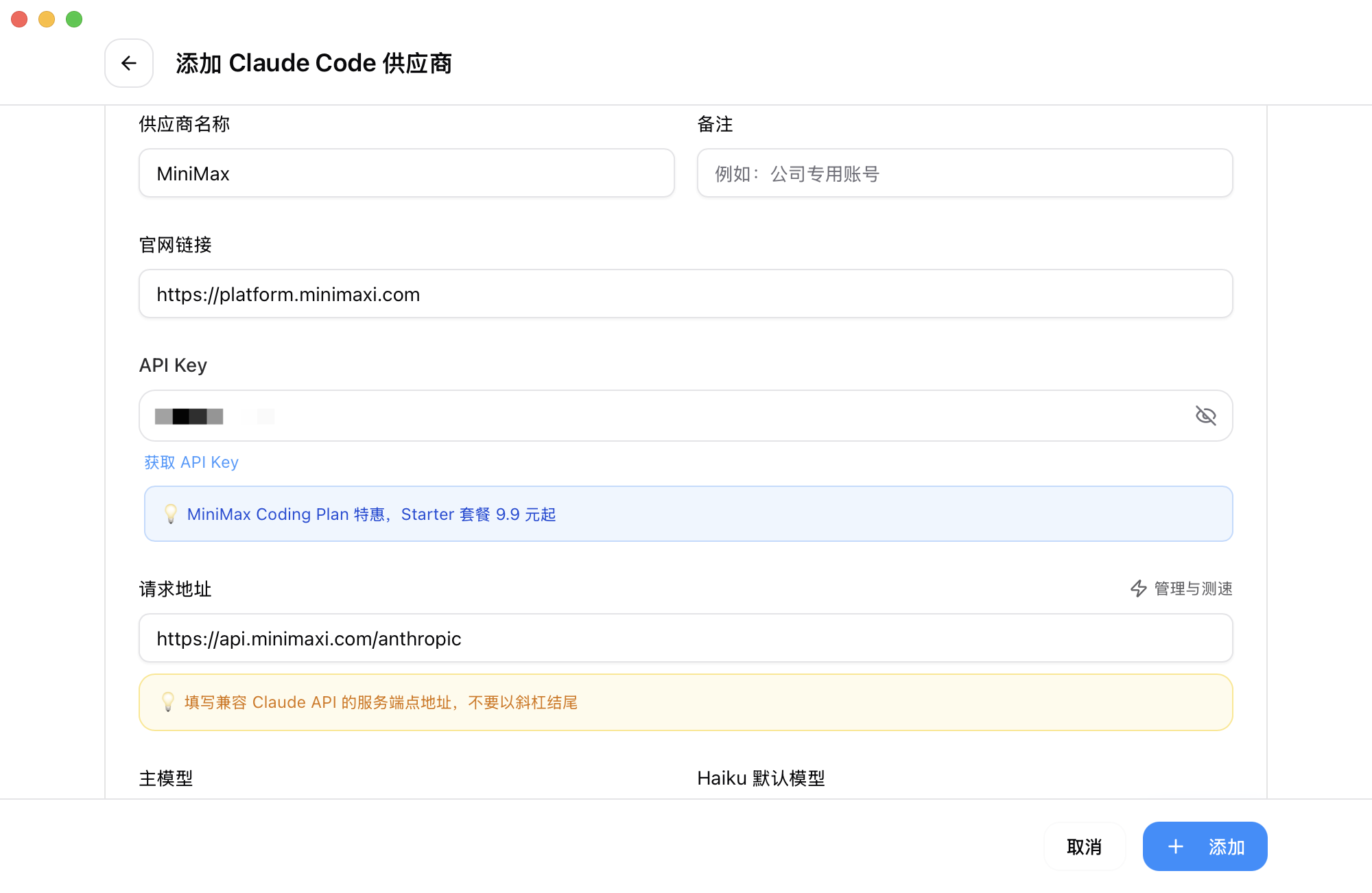
启动 cc-switch,点击右上角 ”+” ,选择预设的 MiniMax 供应商,并填写用户的 MiniMax API Key。
配置模型名称
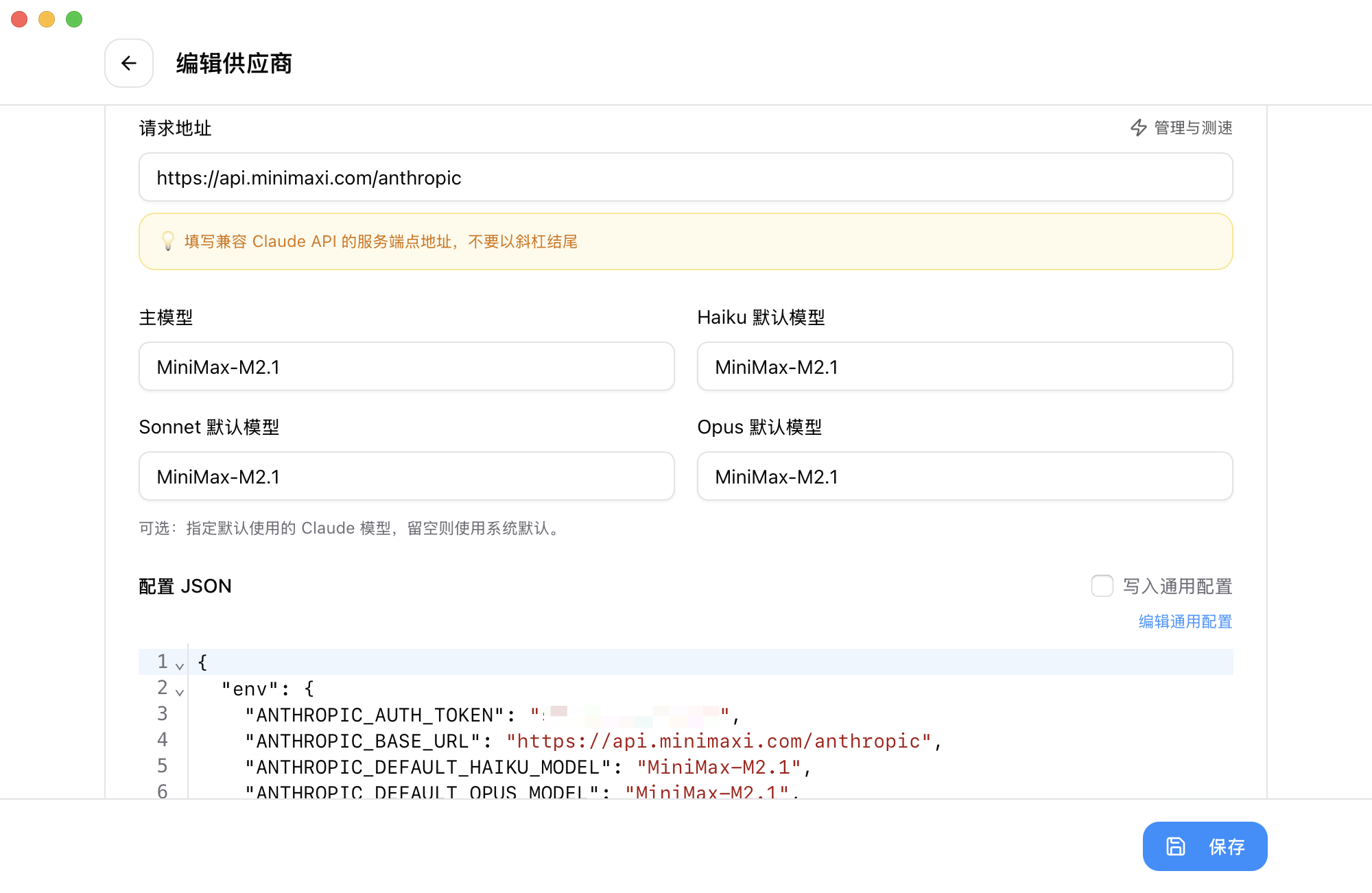
将模型名称全部改为 MiniMax-M2.1,完成后点击右下角的 “添加”。
启用配置
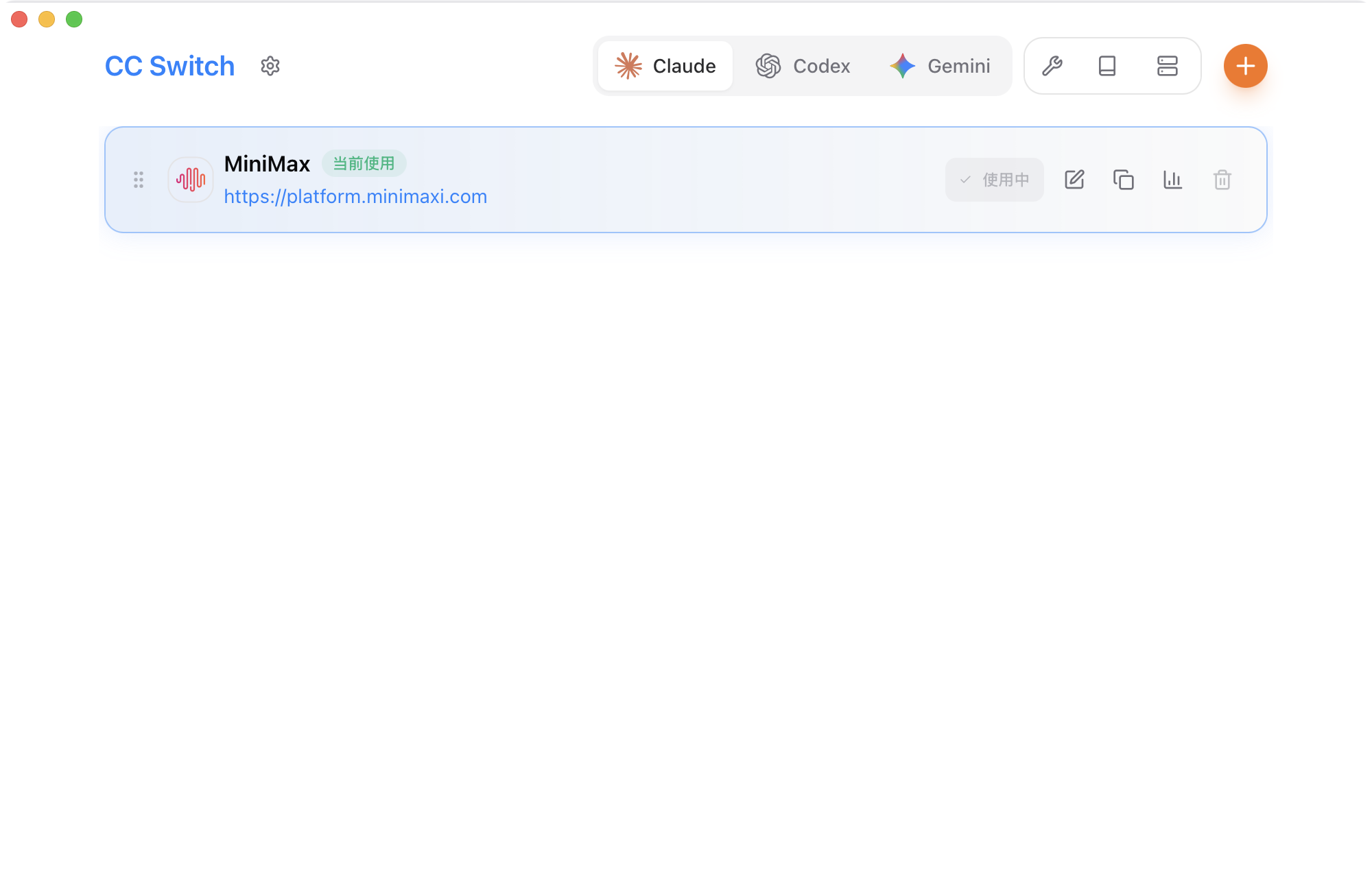
回到首页,点击 “启用” 即可开始使用。
启动 Claude Code
配置完成后,进入工作目录,在终端中运行 claude 命令以启动 Claude Code。
信任文件夹
启动后,选择 信任此文件夹 (Trust This Folder),以允许 Claude Code 访问该文件夹中的文件,随后开始在 Claude Code 中使用 MiniMax-M2.1。
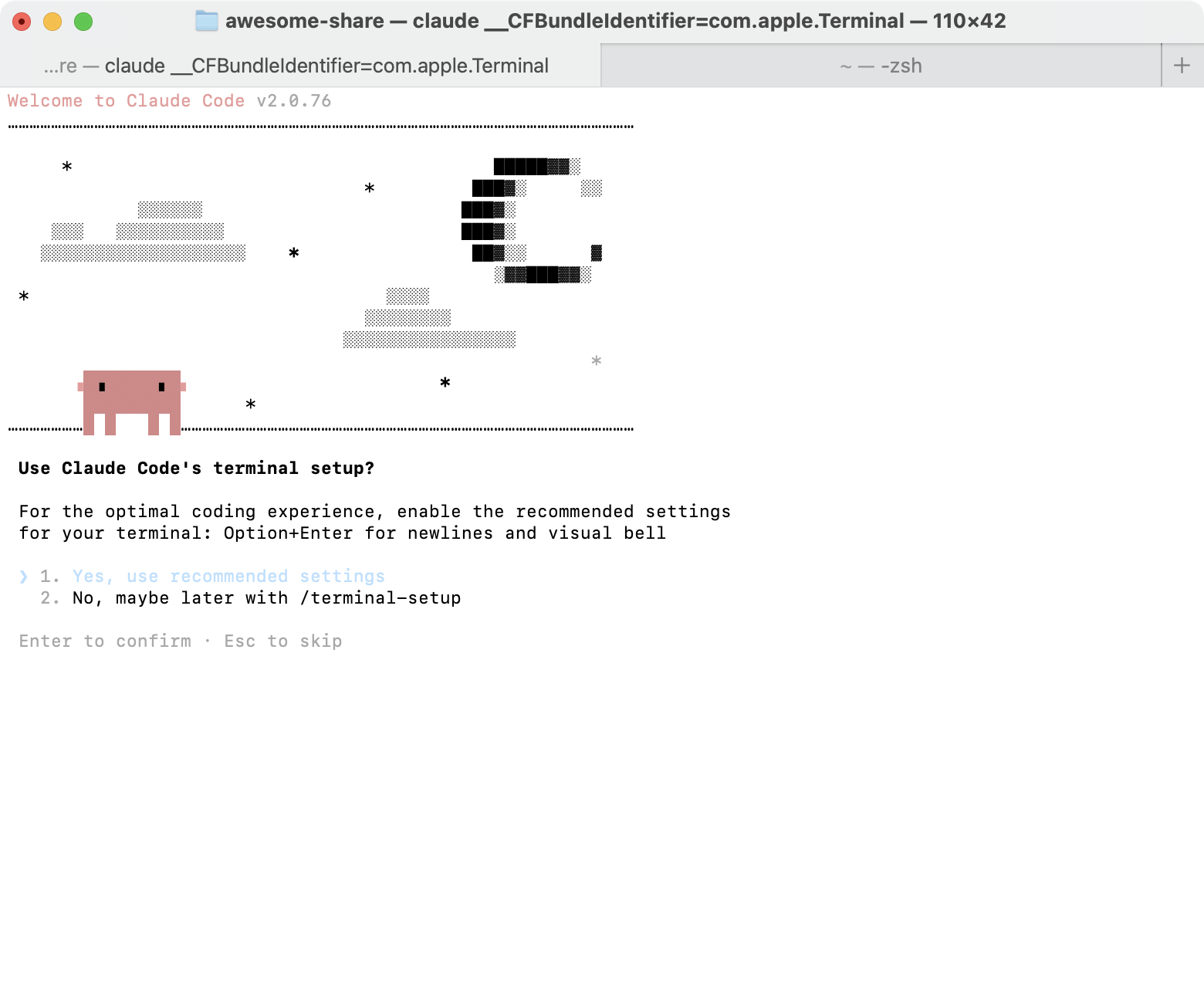
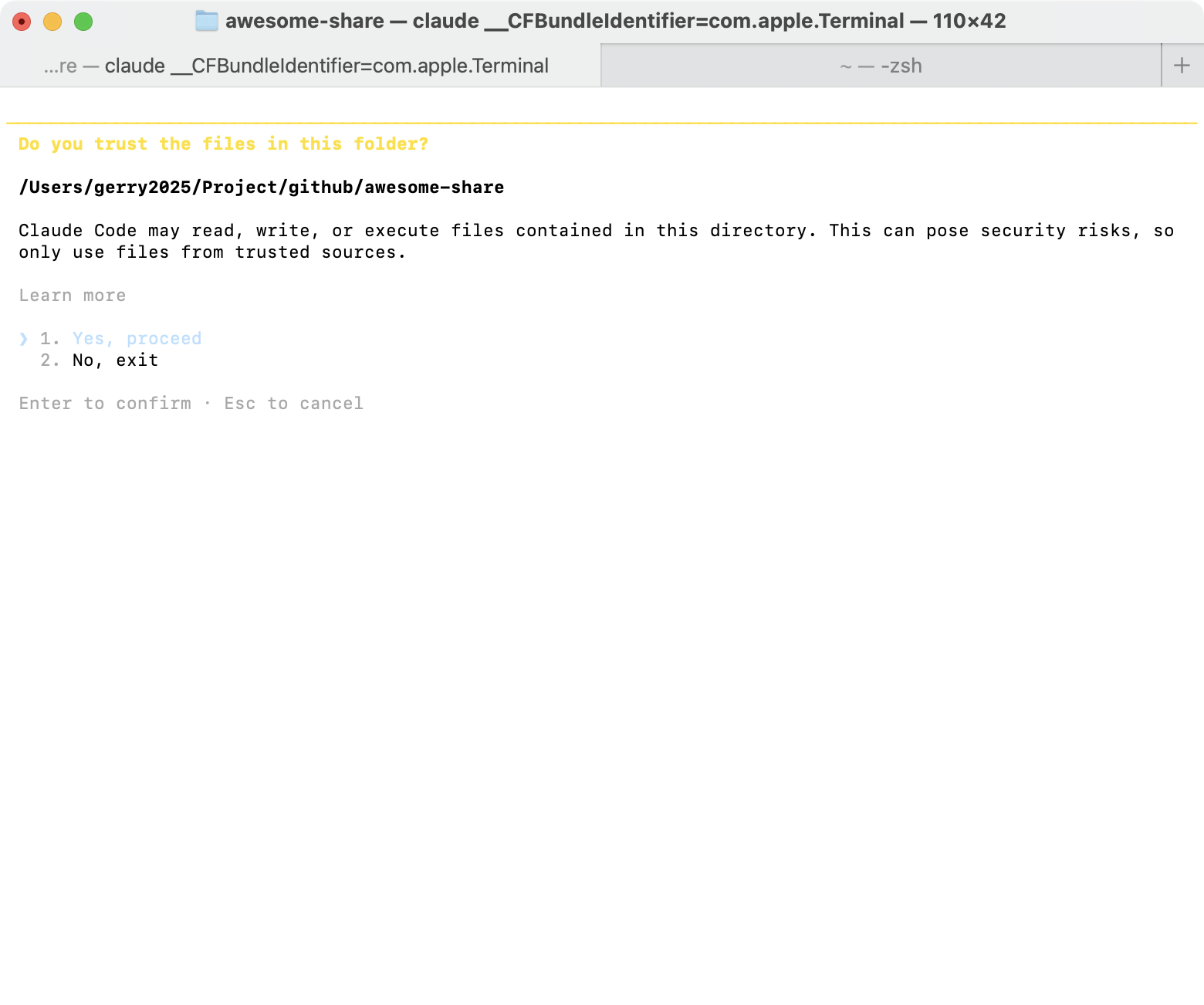
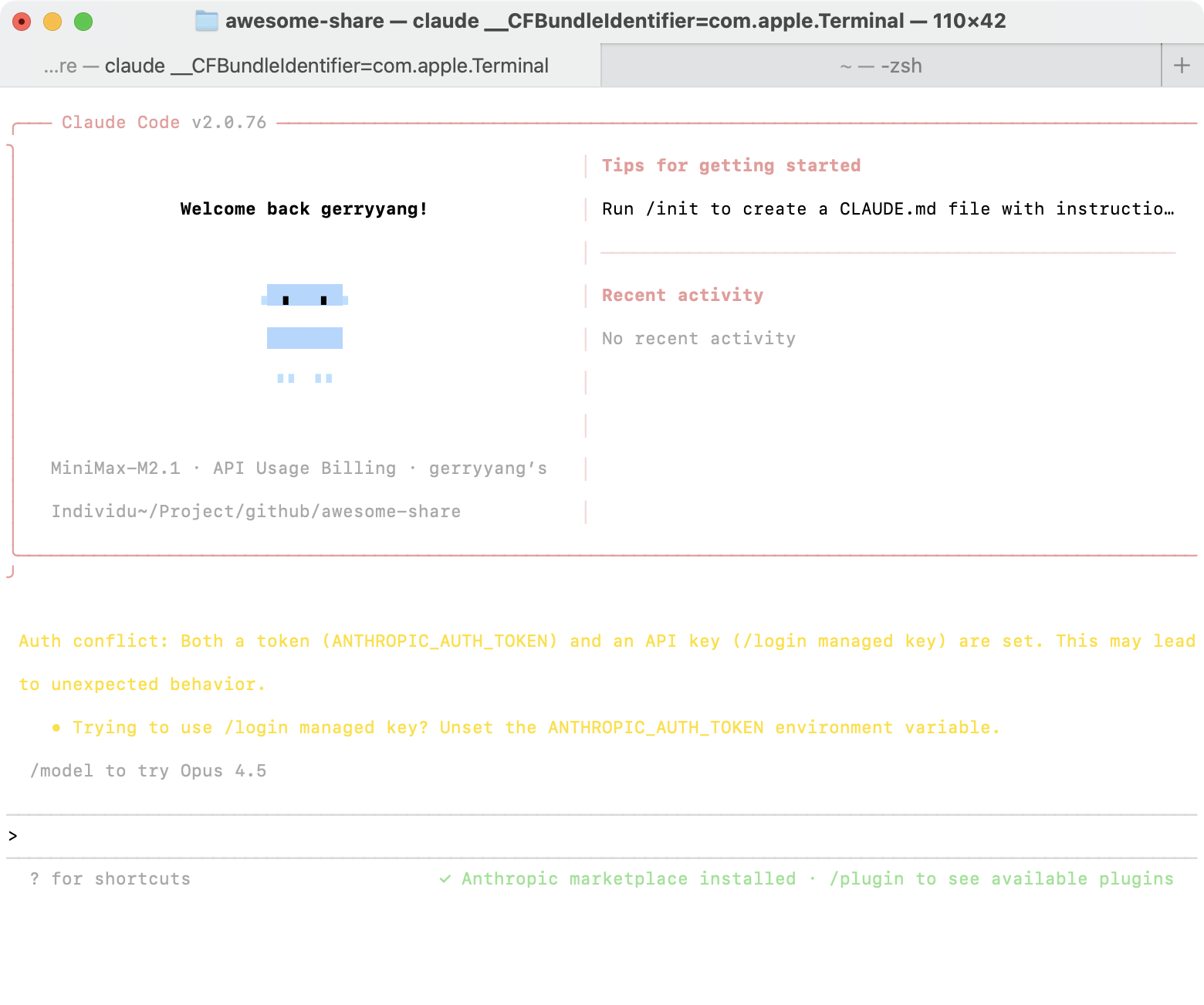
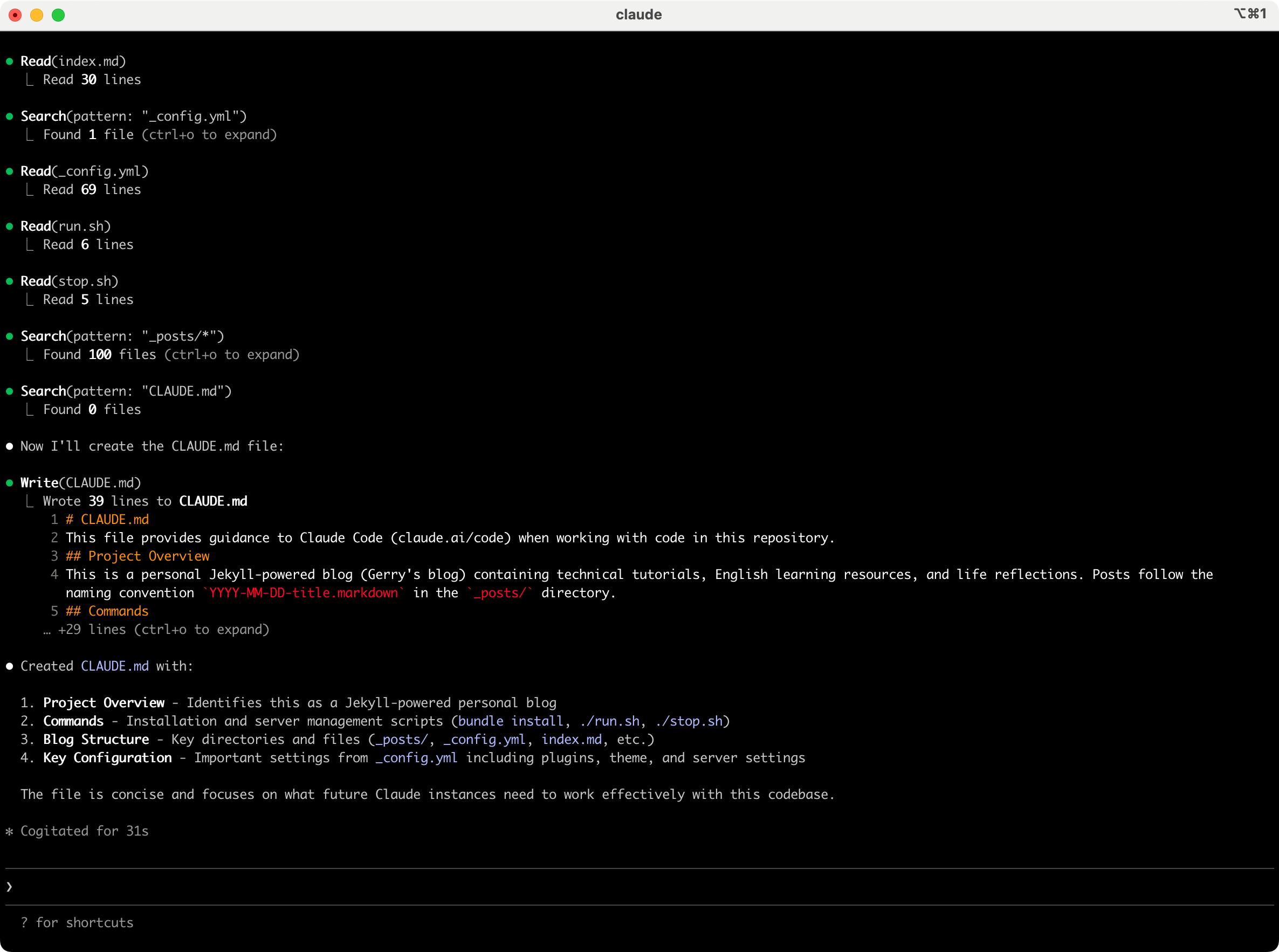
执行 /init 命令生成 CLAUDE.md

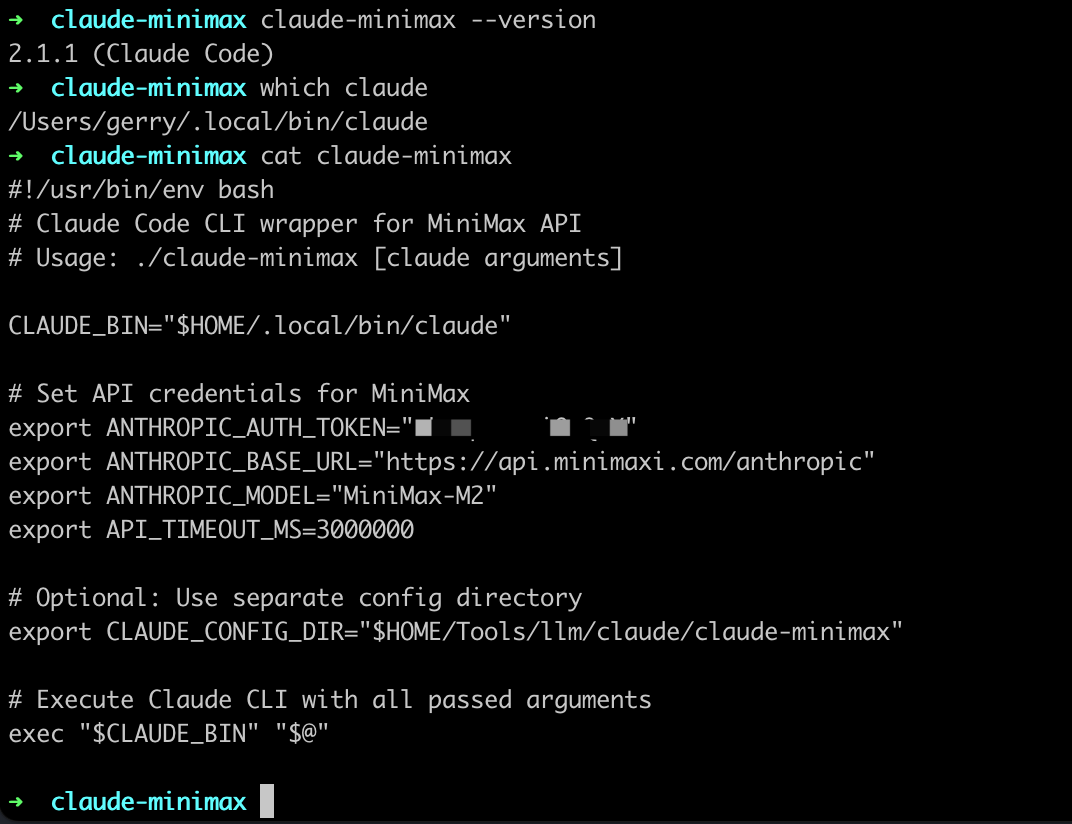
Claude Code CLI 的 Bash 脚本包装器
新建一个 claude-minimax 脚本,将从 MiniMax M2 官网获取的接口参数填入。
#!/usr/bin/env bash
# Claude Code CLI wrapper for MiniMax API
# Usage: ./claude-minimax [claude arguments]

CLAUDE_BIN="$HOME/.local/bin/claude"

# Set API credentials for MiniMax
export ANTHROPIC_AUTH_TOKEN="Your Token"
export ANTHROPIC_BASE_URL="https://api.minimaxi.com/anthropic"
export ANTHROPIC_MODEL="MiniMax-M2"
export API_TIMEOUT_MS=3000000

# Optional: Use separate config directory
export CLAUDE_CONFIG_DIR="$HOME/Tools/llm/claude/claude-minimax"

# Execute Claude CLI with all passed arguments
exec "$CLAUDE_BIN" "$@"
功能说明:
- 设置 MiniMax API 的认证信息
- 指定使用 MiniMax-M2 模型
- 配置 API 超时时间为 3000000 毫秒(50分钟)
- 使用独立的配置目录避免与官方 Claude 配置冲突
- 将所有参数传递给原版 Claude CLI
完成后,可以测试一下,看看能否正常运行。
$ claude-minimax --version
在 VS Code 使用 Claude Code 生成网页时钟的测试
第一步,新建一个本地目录作为项目目录,比如 ai-clock。然后,在 VS Code 里面打开这个目录 ai-clock,作为工作区。
第二步,打开 VS Code 的菜单”终端/新建终端”,在这个终端窗口里面,输入 claude-minimax。这时,窗口会提示你授予权限,同意后,就会进入主界面,大概就是下面这样。


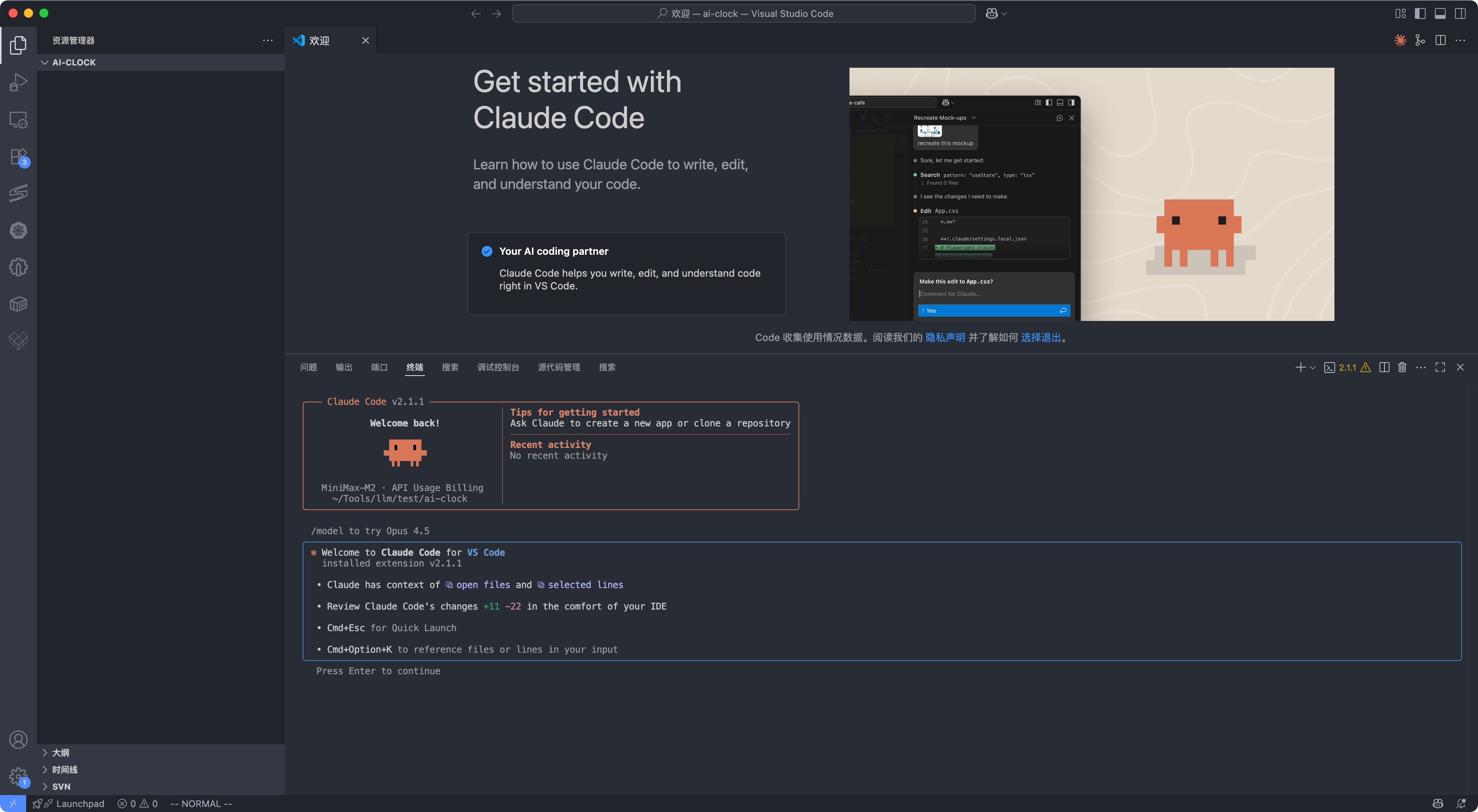
现在,我们就能在 VS Code 里面使用命令行的 Claude Code 了。这时,你既可以使用 IDE 编写代码,又可以通过命令行使用 AI 模型,兼得两者的优势。
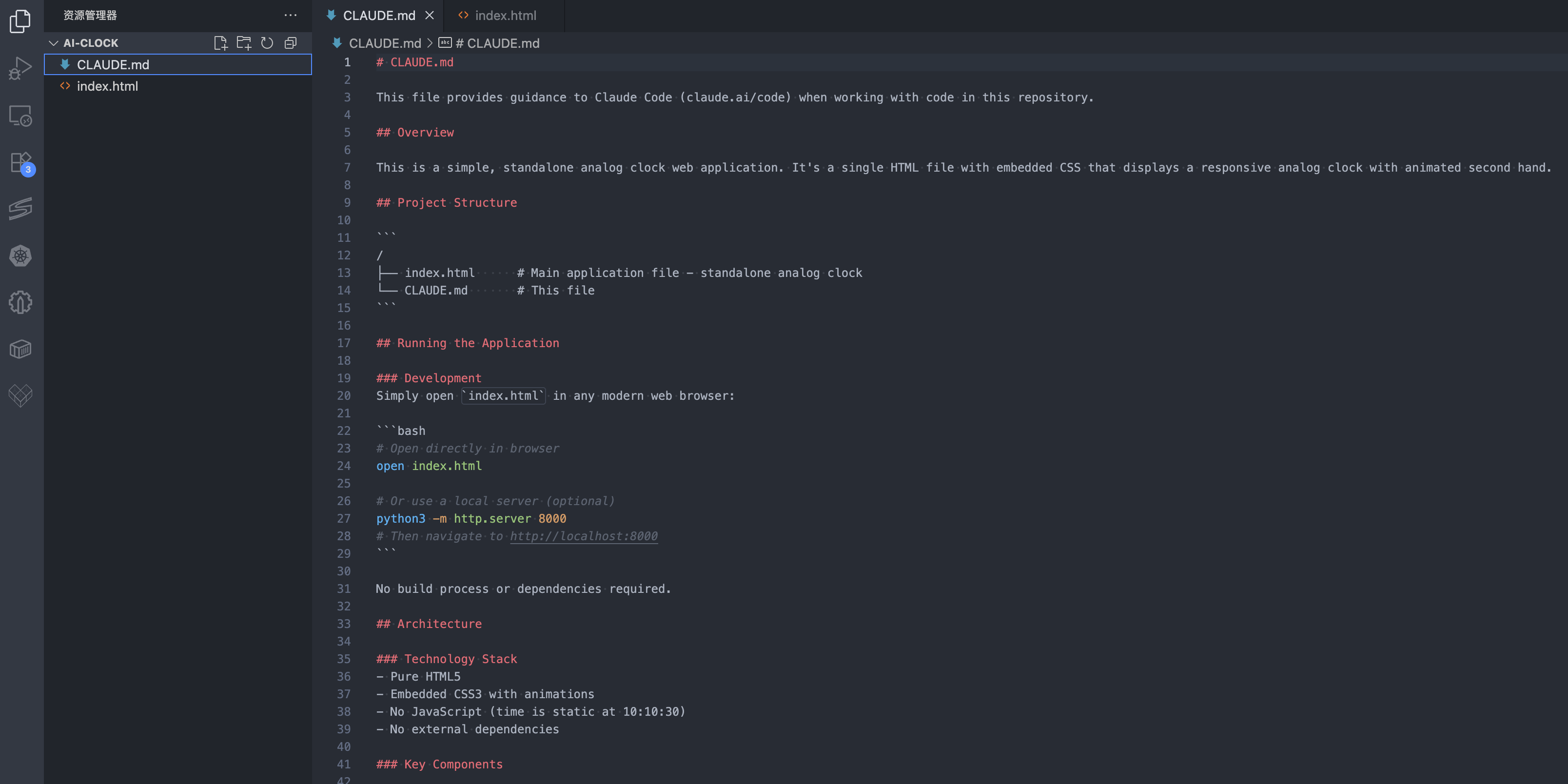
第三步,在 Claude Code 的提示符后面,输入 /init 命令,用来在仓库里面生成一个 CLAUDE.md 文件,记录 AI 对这个仓库操作。
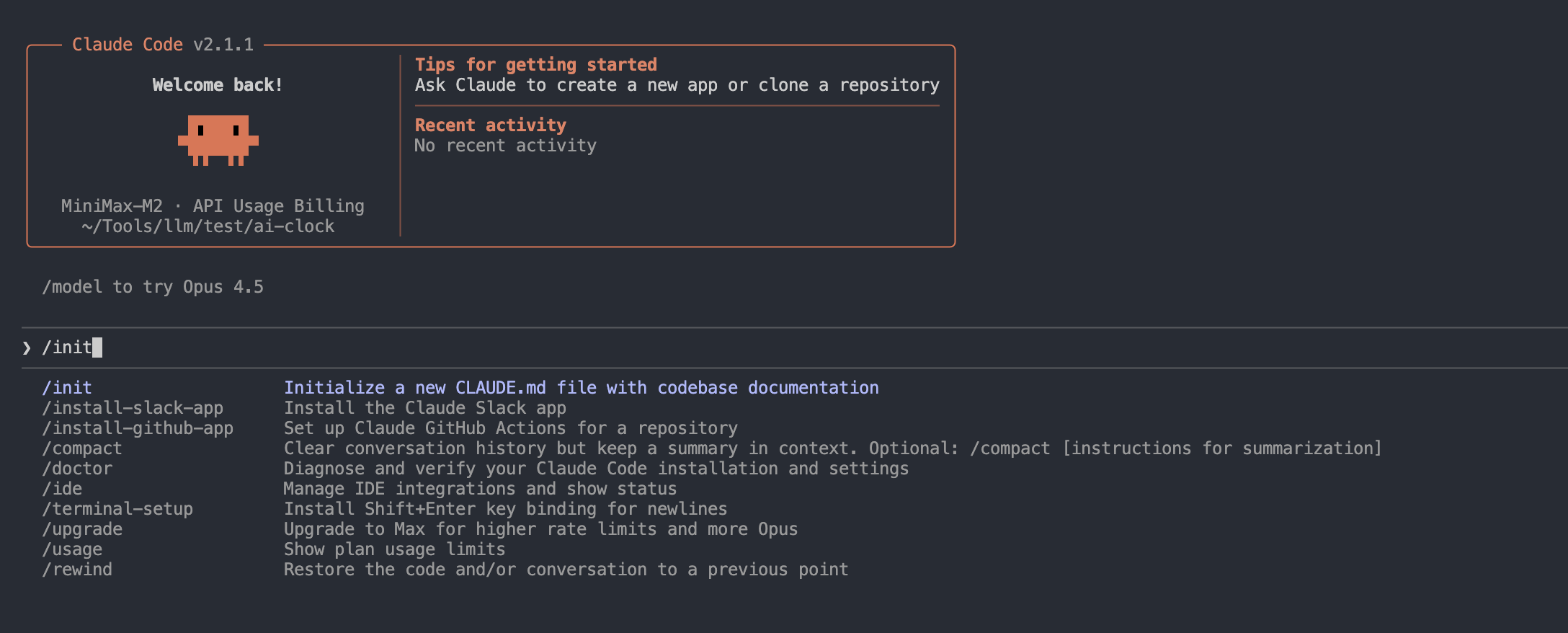
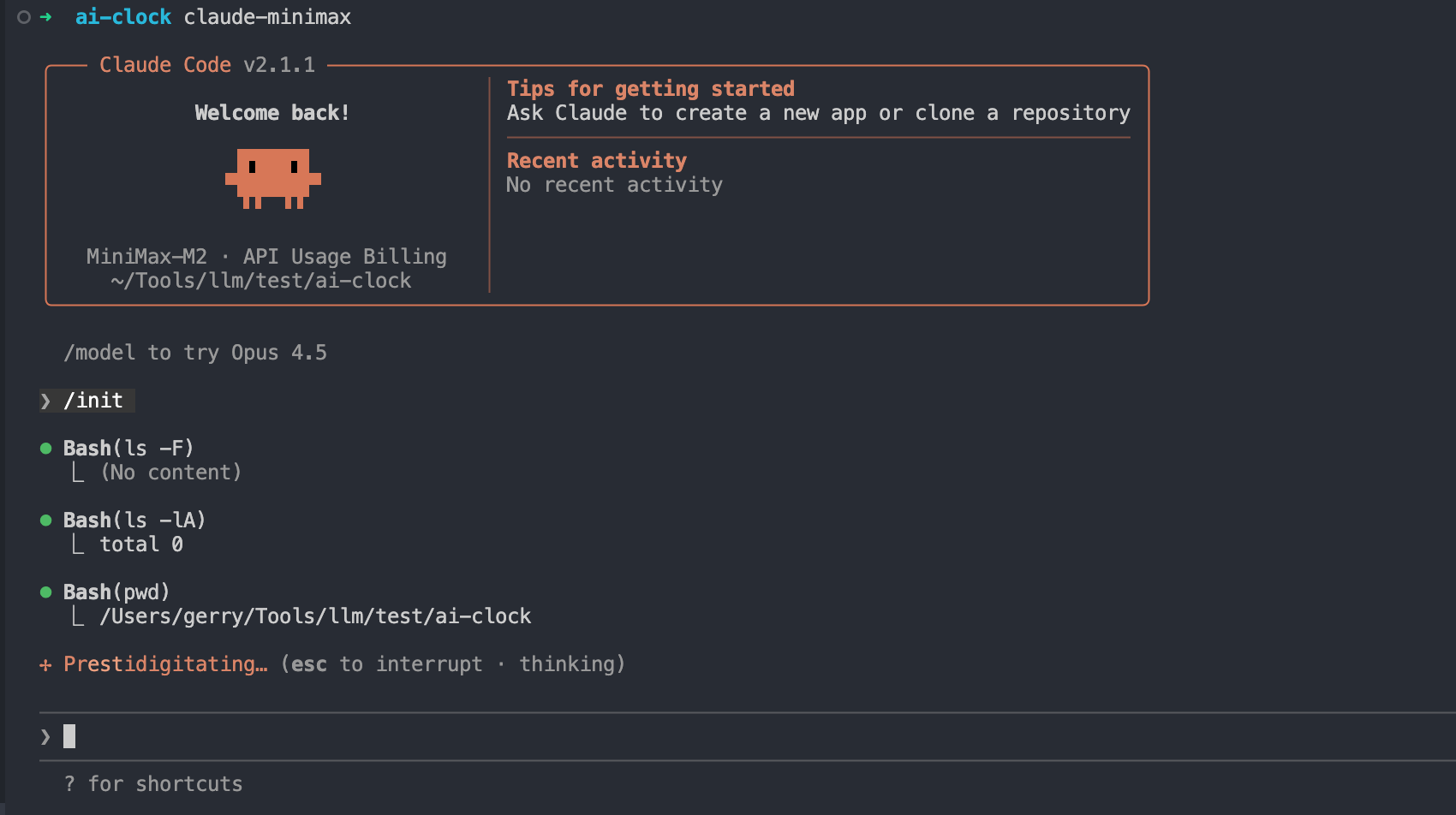
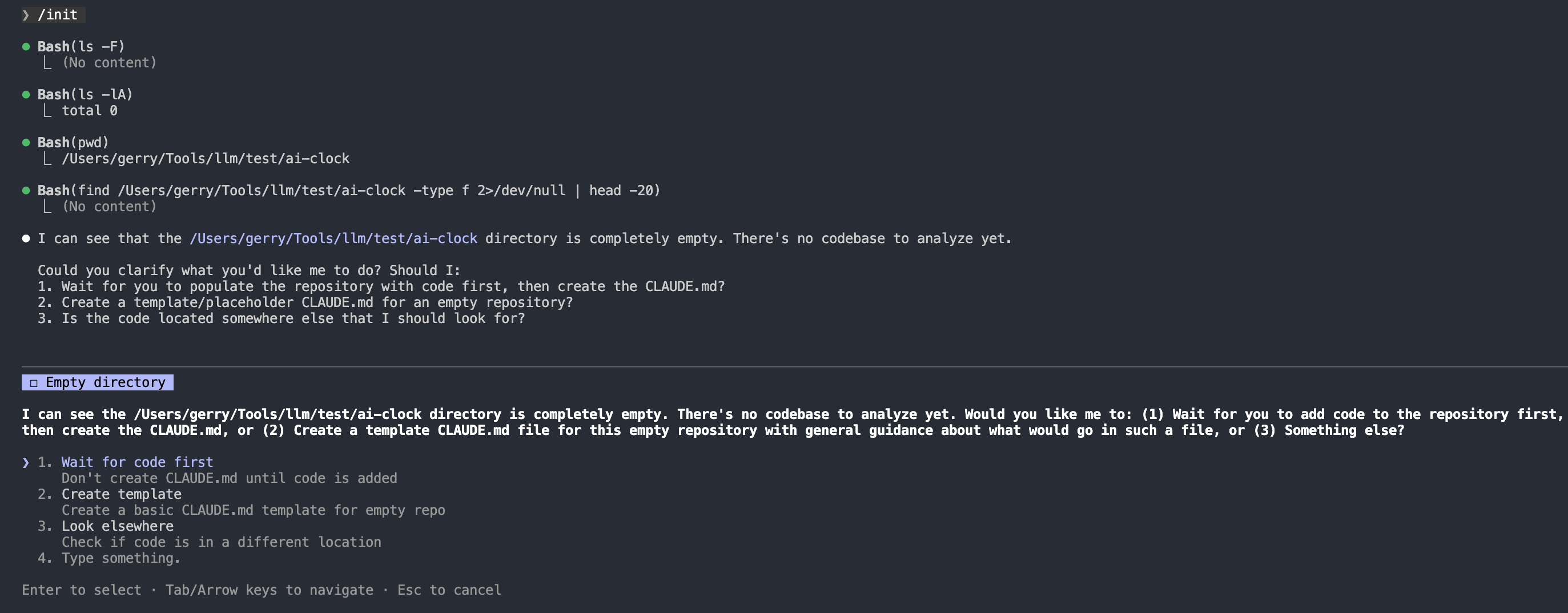
由于示例仓库是空的,所以选择创建一个标准的 CLAUDE.md 模版文件。这个文件的作用是当作上下文,每次查询模型时,都会自动附上这个文件,以便模型了解代码库。
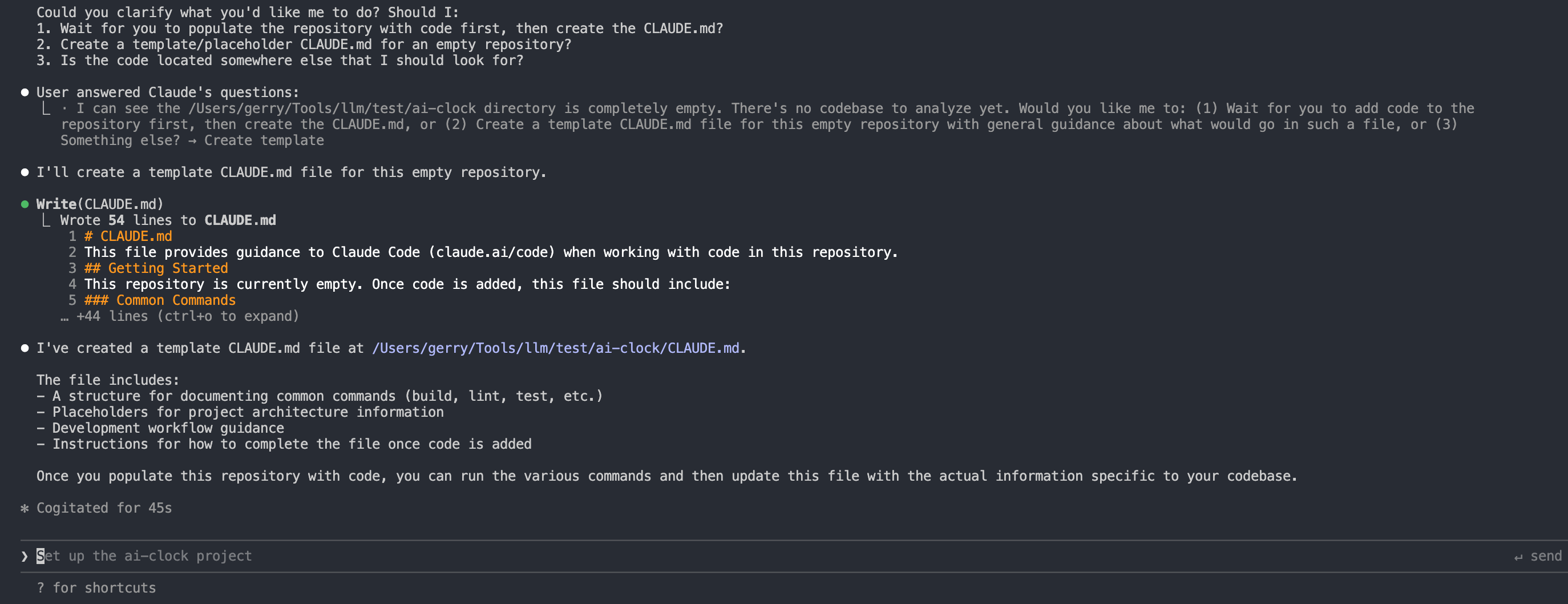
如果在提示框输入反斜杠,Claude Code 就会显示所有可用的命令。通过这些命令,我们就能使用 Claude Code 的强大功能,完成各种 AI 操作了。这一步是 Claude Code 的基础用法,对所有项目都是通用的。

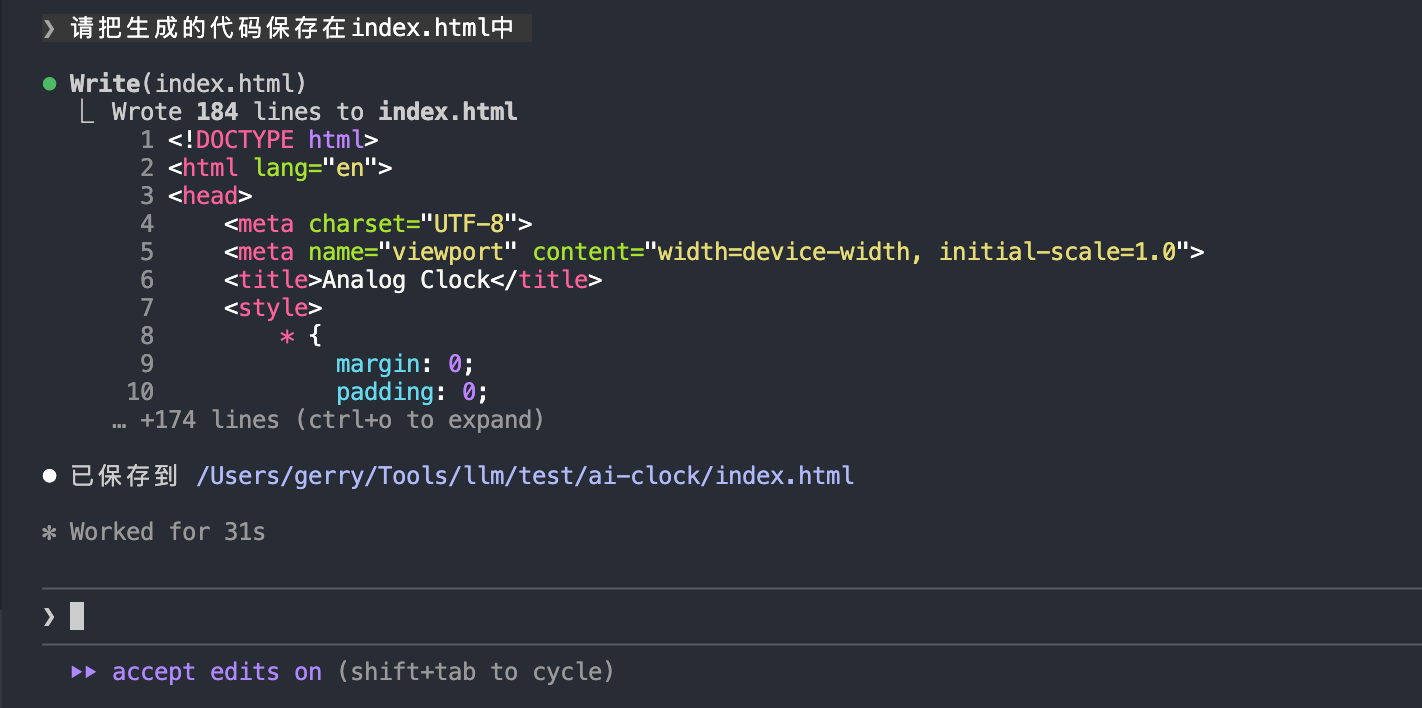
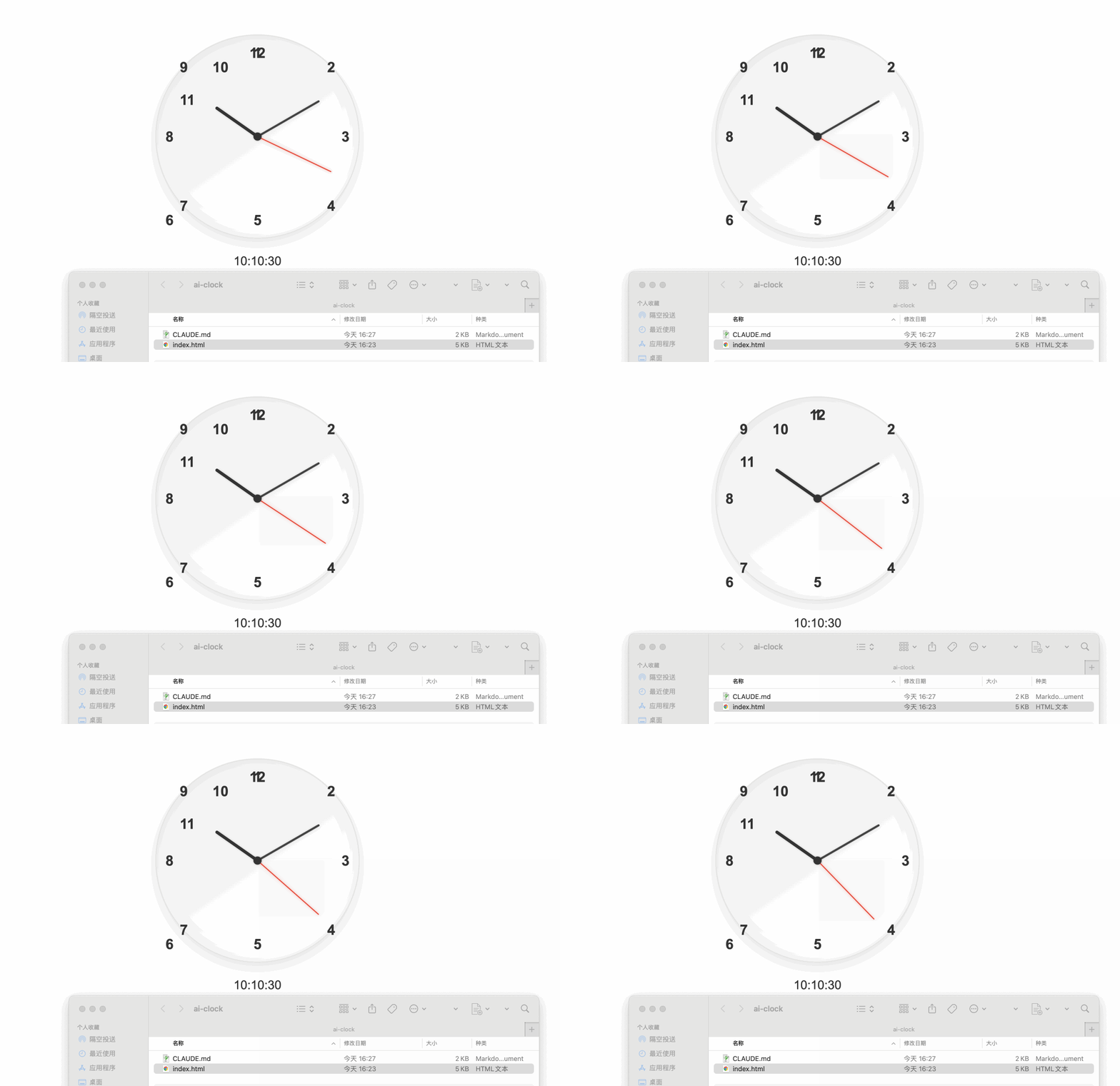
第四步,在提示框输入前面的提示词(下图),让模型生成网页时钟。
Create HTML/CSS of an analog clock showing ${time}. Include numbers (or numerals) if you wish, and have a CSS animated second hand. Make it responsive and use a white background. Return ONLY the HTML/CSS code with no markdown formatting.
翻译成中文就是:”创建一个显示时间 ${time} 的模拟时钟的 HTML/CSS 代码。如果需要,可以包含数字,并添加 CSS 动画秒针。使其具有响应式设计,并使用白色背景。仅返回 HTML/CSS 代码,不要包含任何 Markdown 格式。”
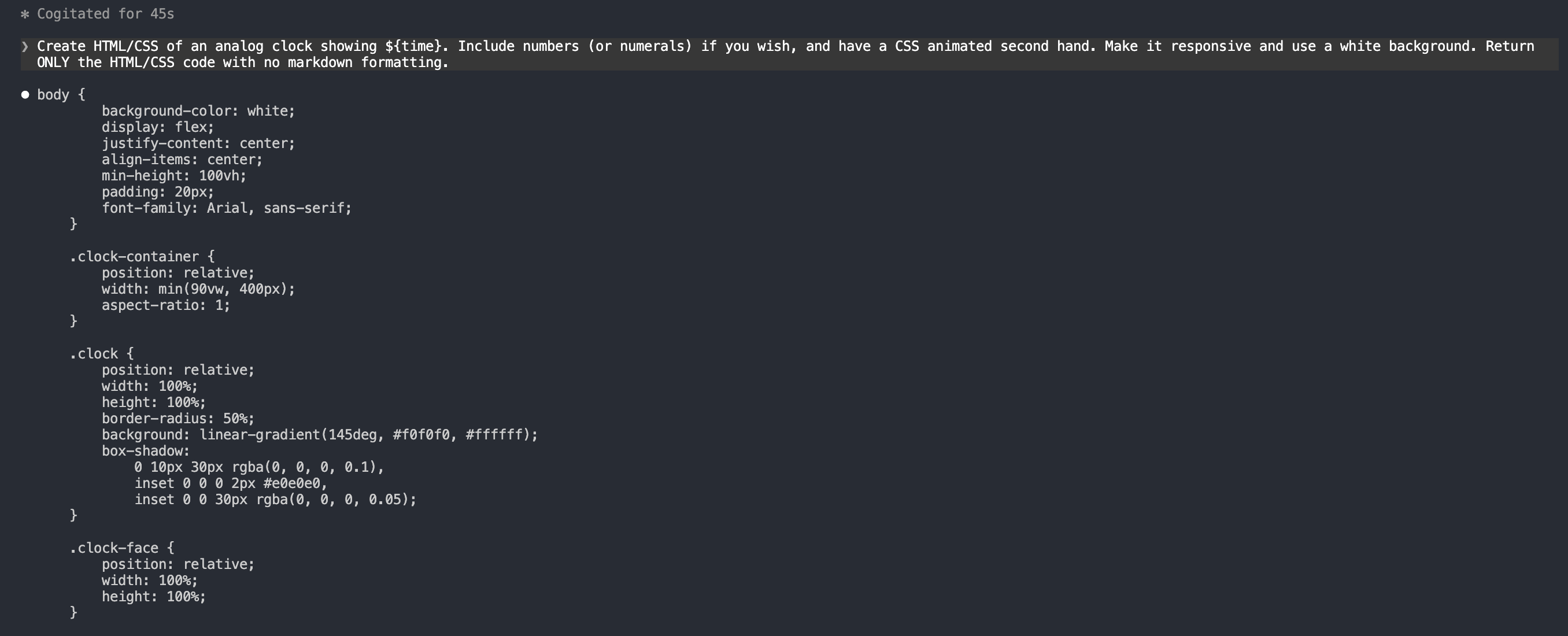
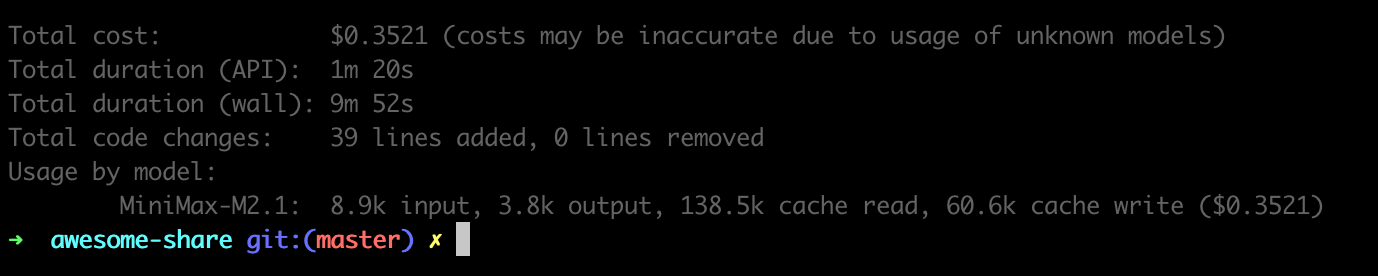
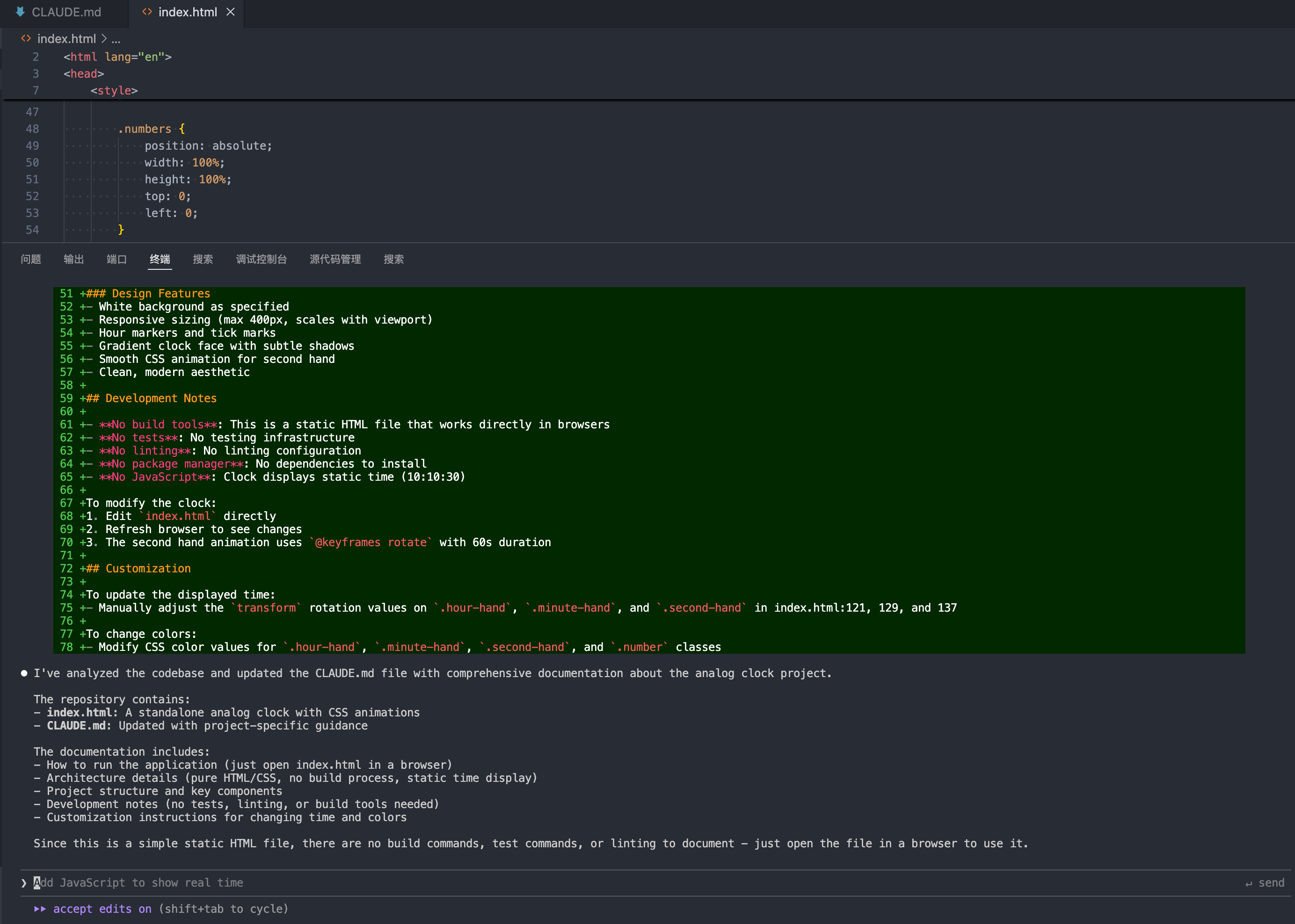
重新执行 /init 命令更新 CLAUDE.md 文件。
在 Cursor 中使用 MiniMax-M2.1
参考:https://platform.minimaxi.com/docs/guides/text-ai-coding-tools#%E5%9C%A8-cursor-%E4%B8%AD%E4%BD%BF%E7%94%A8-minimax-m2-1
安装 Cursor
- 通过 Cursor 官网 下载并安装 Cursor
- 打开 Cursor,右上角“设置”按钮,进入设置界面。点击“Sign in”按钮,登录自己的 Cursor 账户

在 Cursor 中配置 MiniMax API
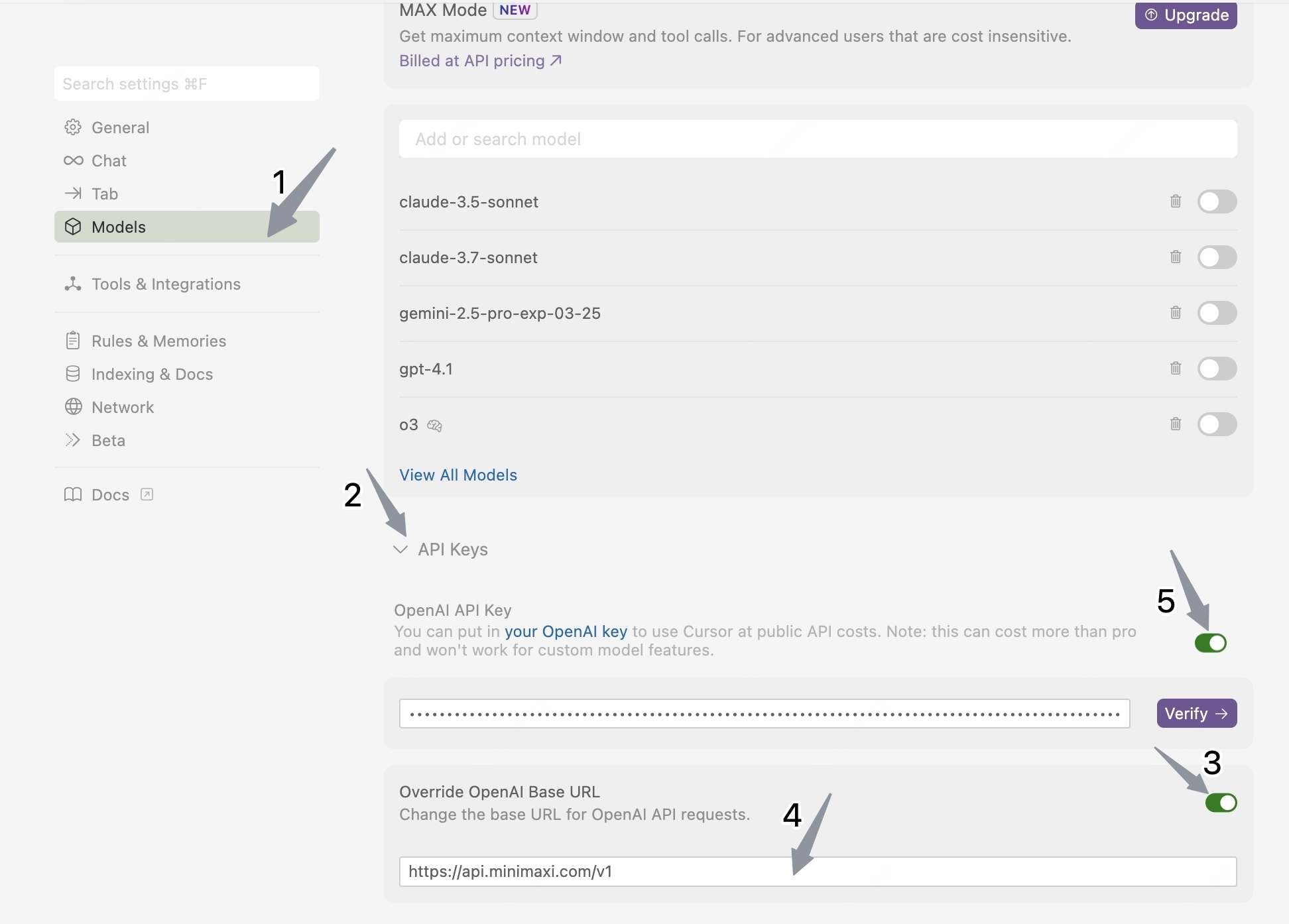
- 点击左侧栏的 “Models”,进入模型配置页面
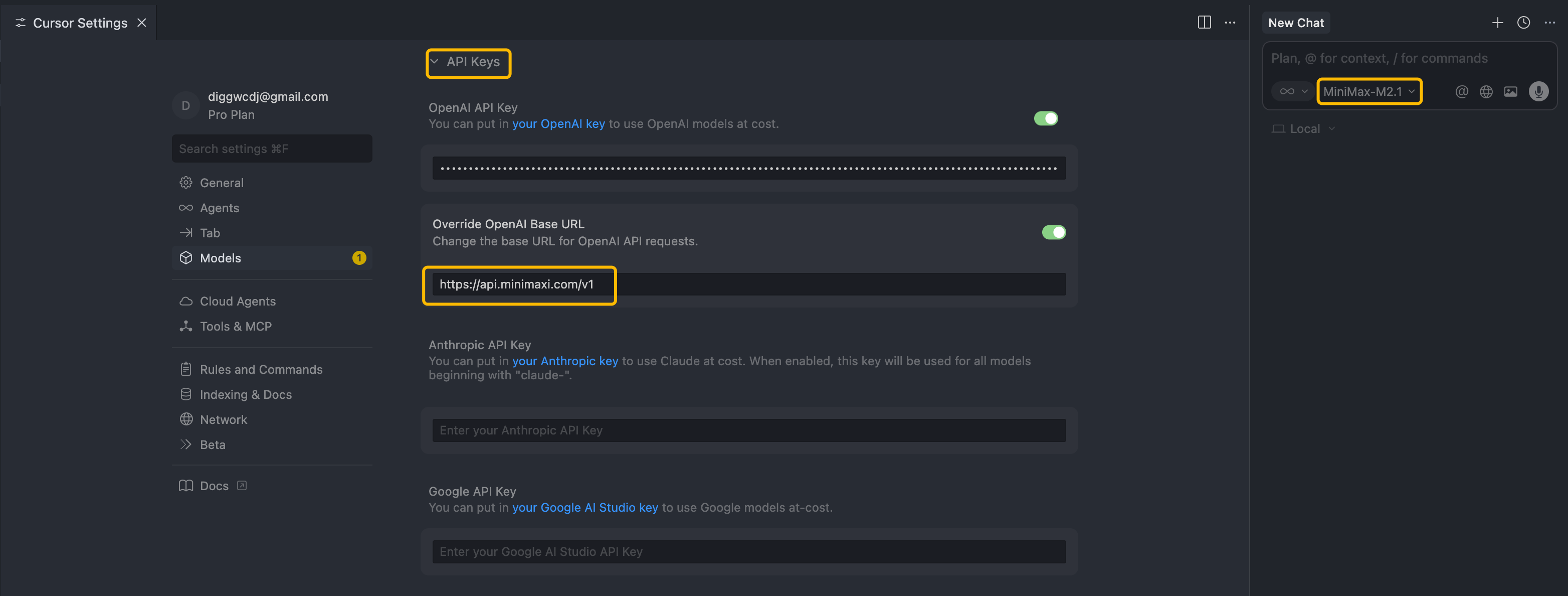
- 展开 “API Keys” 部分,配置 API 信息:
- 勾选 “Override OpenAI Base URL”
- 在下方输入 MiniMax 的调用地址(国内用户使用 https://api.minimaxi.com/v1,国际用户使用 https://api.minimax.io/v1)
- 在 OpenAI API Key 输入框,配置从 MiniMax 开放平台 (国际用户可访问 MiniMax Developer Platform) 获取的 API Key
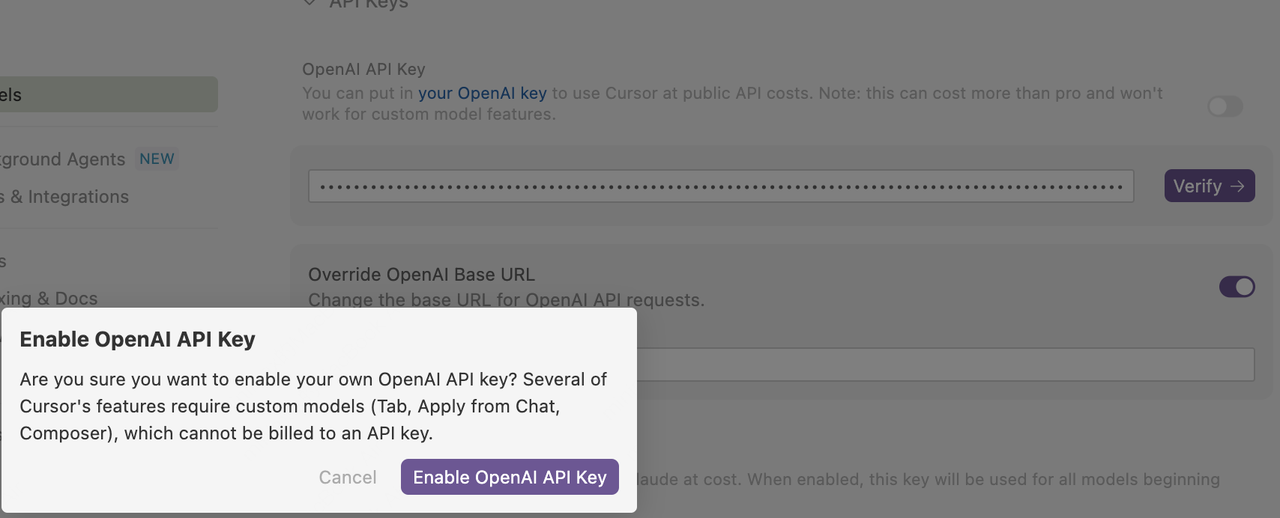
- 点击 “OpenAI API Key” 栏右侧的按钮,在弹出的窗口中点击 “Enable OpenAI API Key” 按钮,完成设置验证
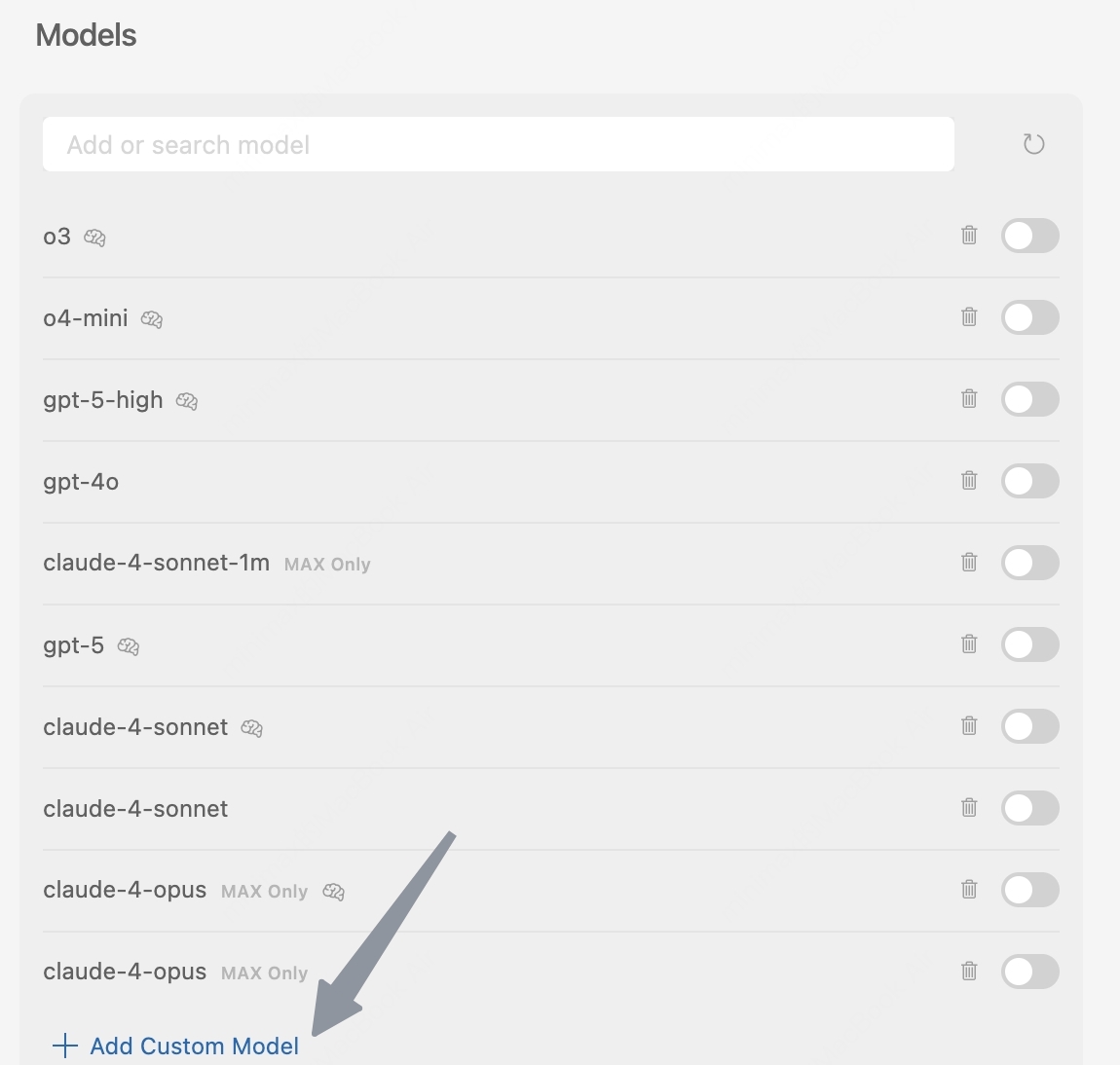
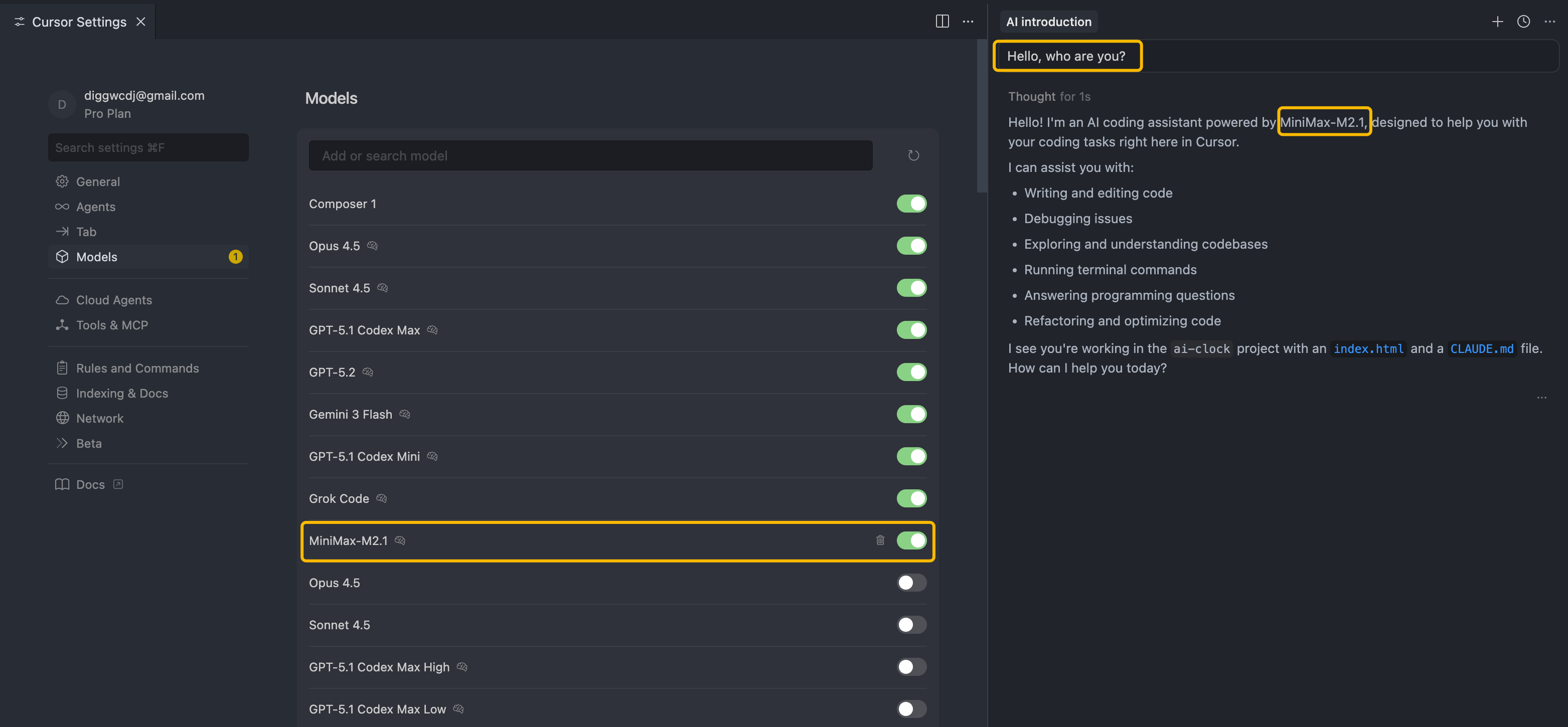
- 在 Models 板块中,点击 “View All Models” 按钮,并点击 “Add Custom Model” 按钮
- 输入模型名称 “MiniMax-M2.1” 后,点击 “Add” 按钮
- 启用刚添加的 “MiniMax-M2.1” 模型
- 在聊天面板中选择 “MiniMax-M2.1” 模型,开始使用 “MiniMax-M2.1”

Interactive mode
参考:https://code.claude.com/docs/en/interactive-mode
Complete reference for keyboard shortcuts, input modes, and interactive features in Claude Code sessions.
Keyboard shortcuts
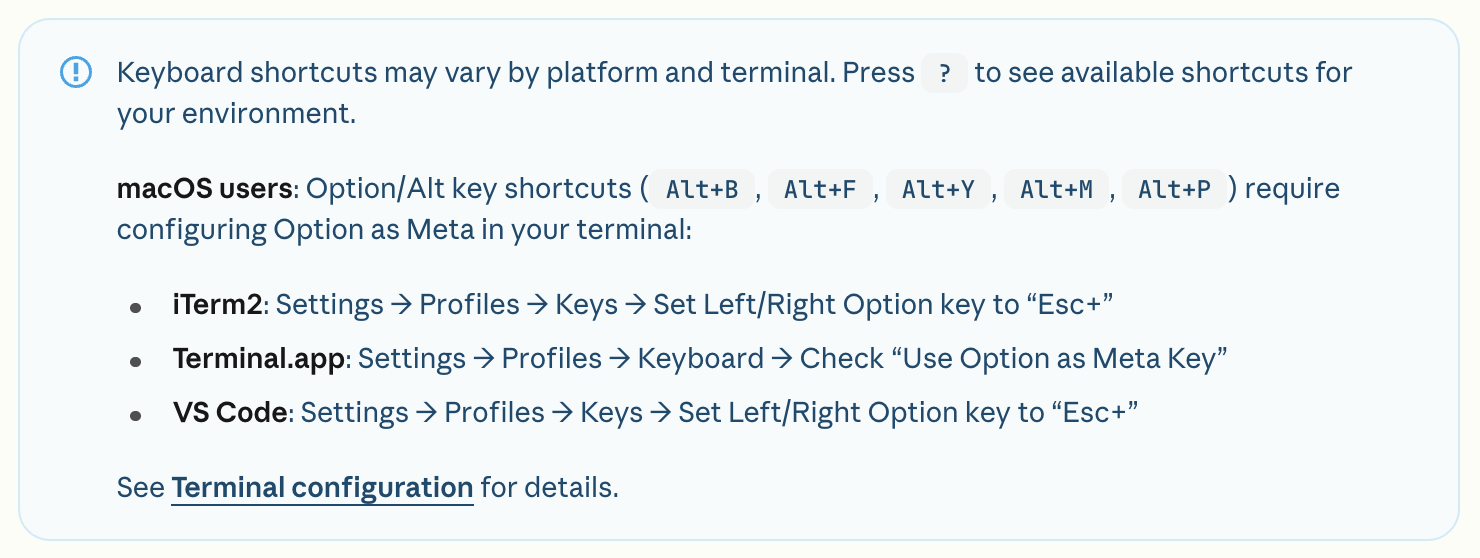
General controls
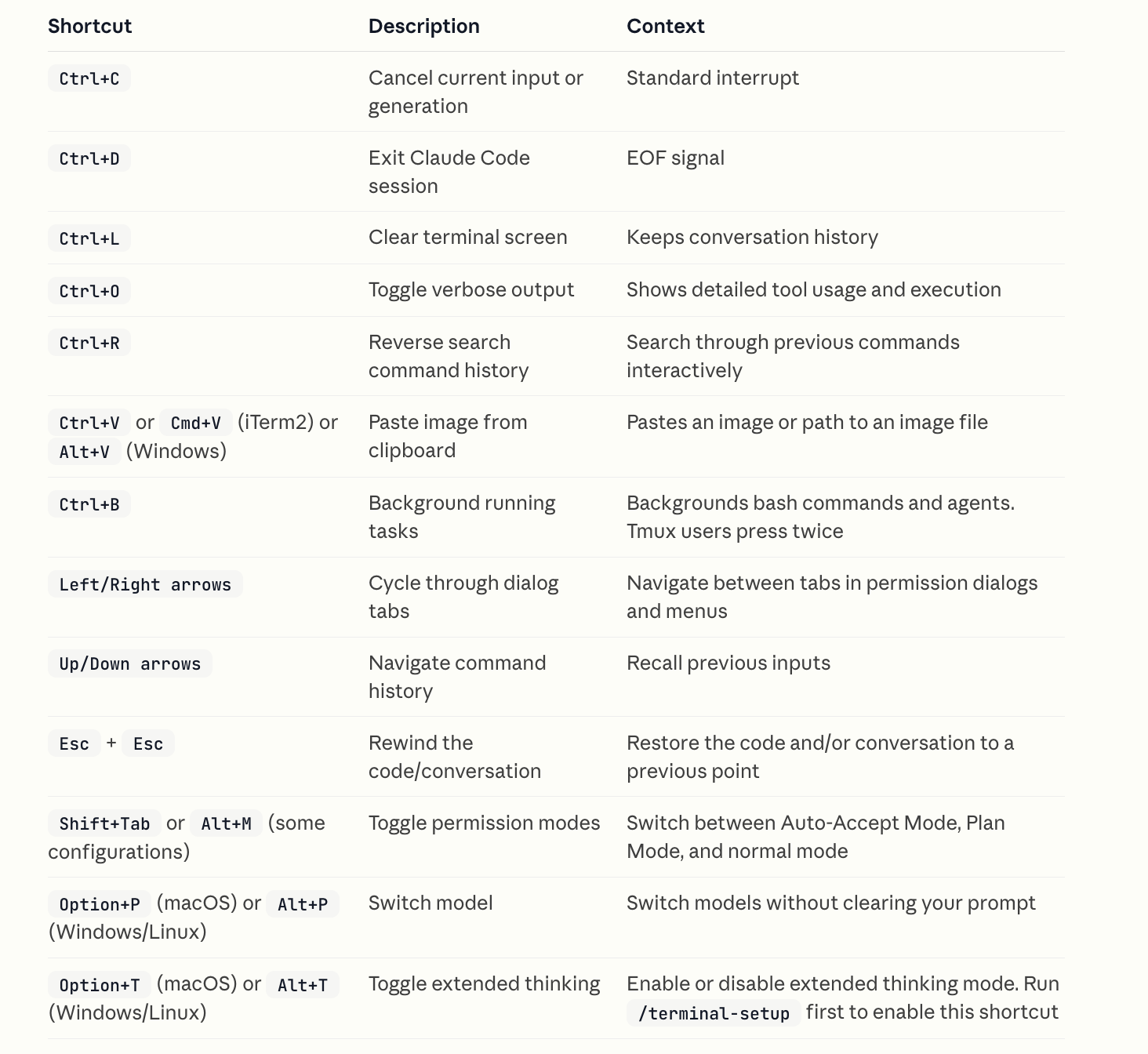
Text editing
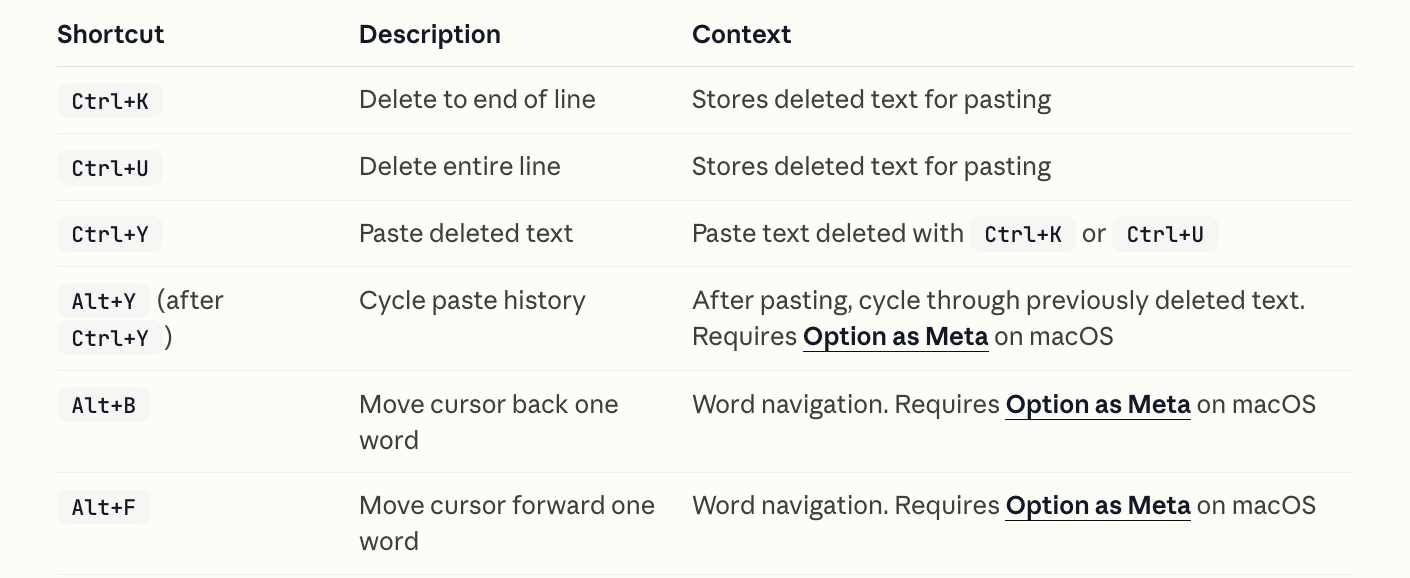
Theme and display

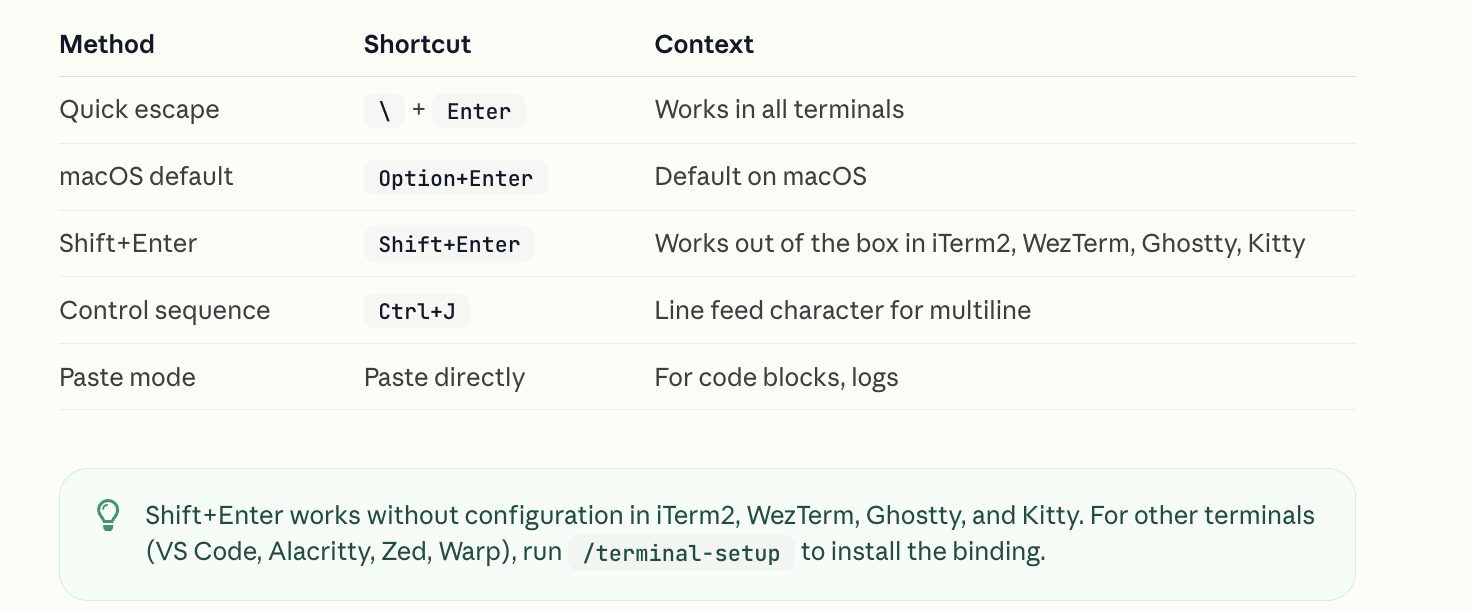
Multiline input
Quick commands
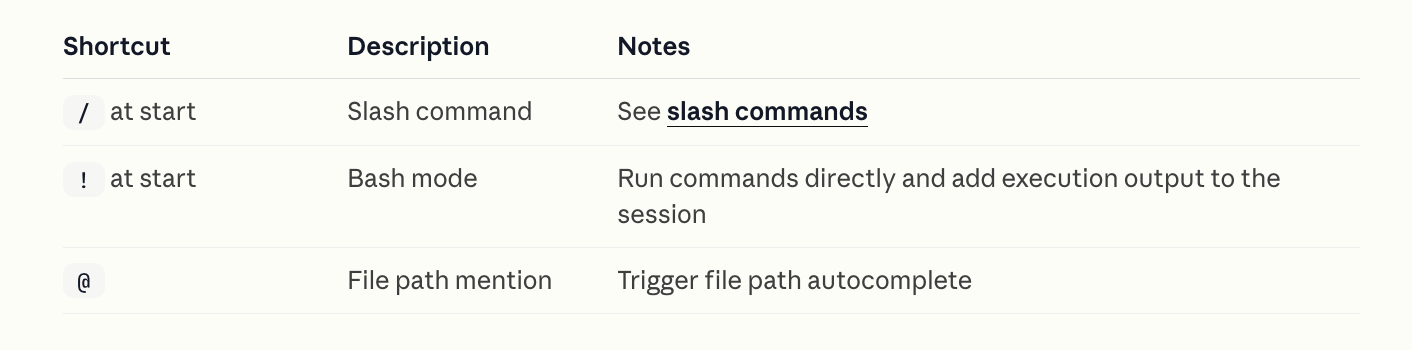
Slash commands: https://code.claude.com/docs/en/slash-commands
Vim editor mode
Enable vim-style editing with /vim command or configure permanently via /config.
Command history
Claude Code maintains command history for the current session:
- History is stored per working directory
- Cleared with
/clearcommand - Use Up/Down arrows to navigate (see keyboard shortcuts above)
- Note: History expansion (
!) is disabled by default
Reverse search with Ctrl+R
Press Ctrl+R to interactively search through your command history:
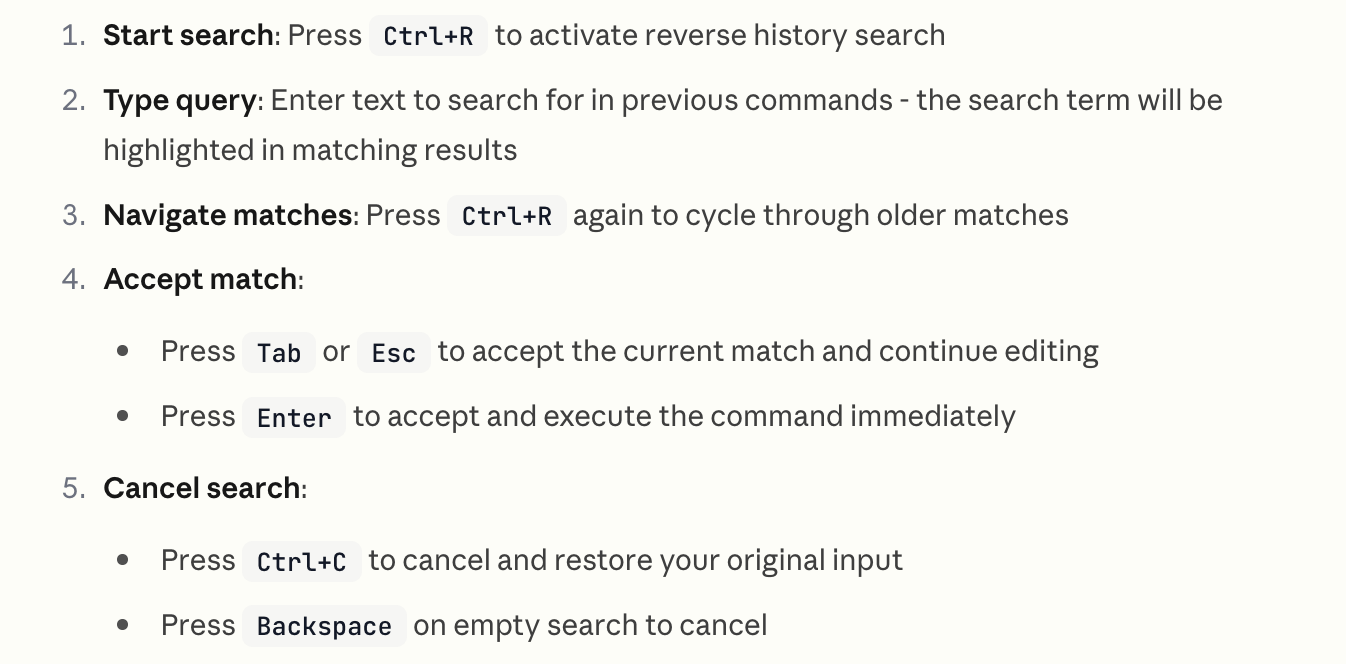
The search displays matching commands with the search term highlighted, making it easy to find and reuse previous inputs.
Background bash commands
Claude Code supports running bash commands in the background, allowing you to continue working while long-running processes execute.
Slash commands
参考:https://code.claude.com/docs/en/slash-commands
Control Claude’s behavior during an interactive session with slash commands.
## Built-in slash commands
https://code.claude.com/docs/en/slash-commands#built-in-slash-commands
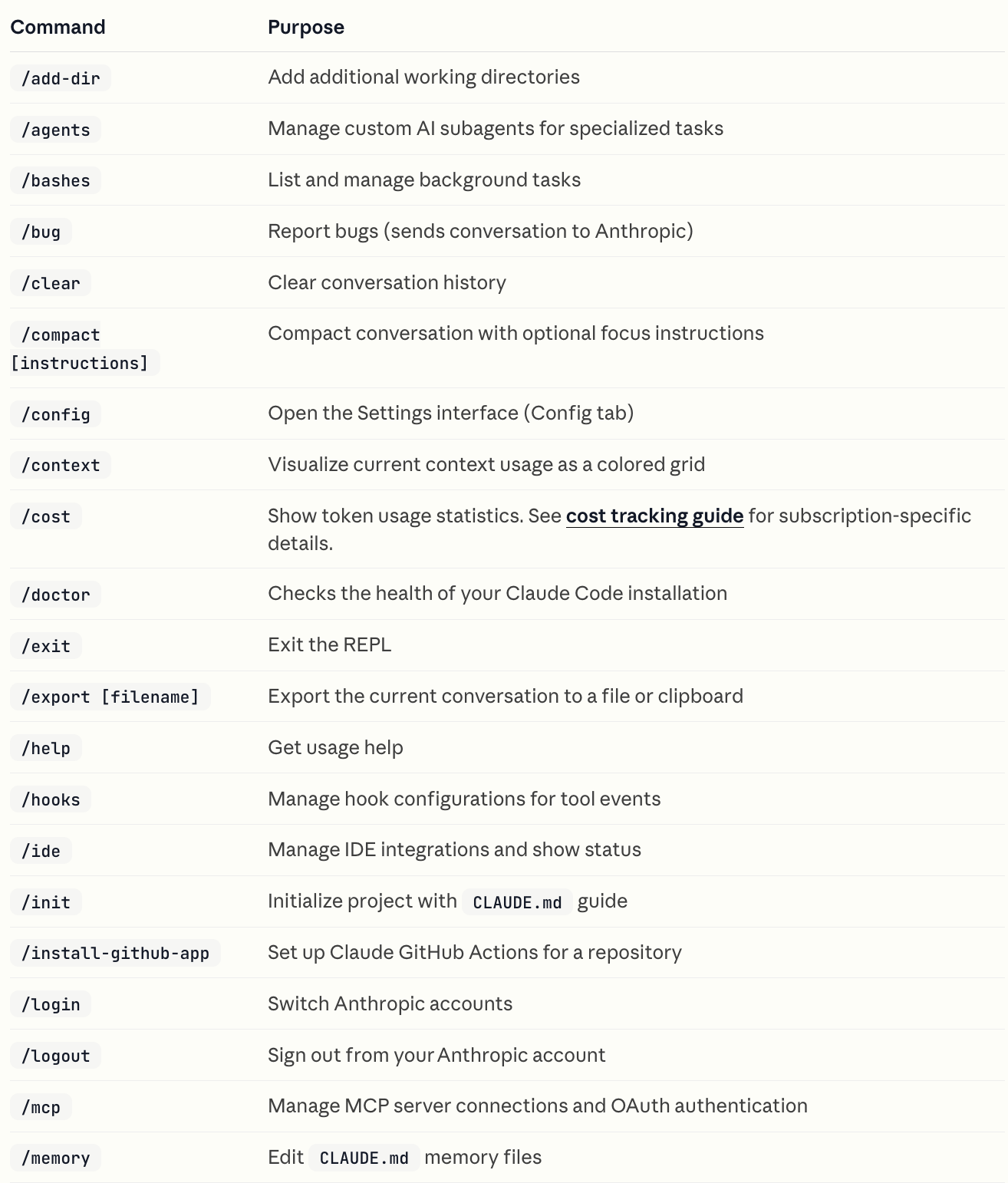
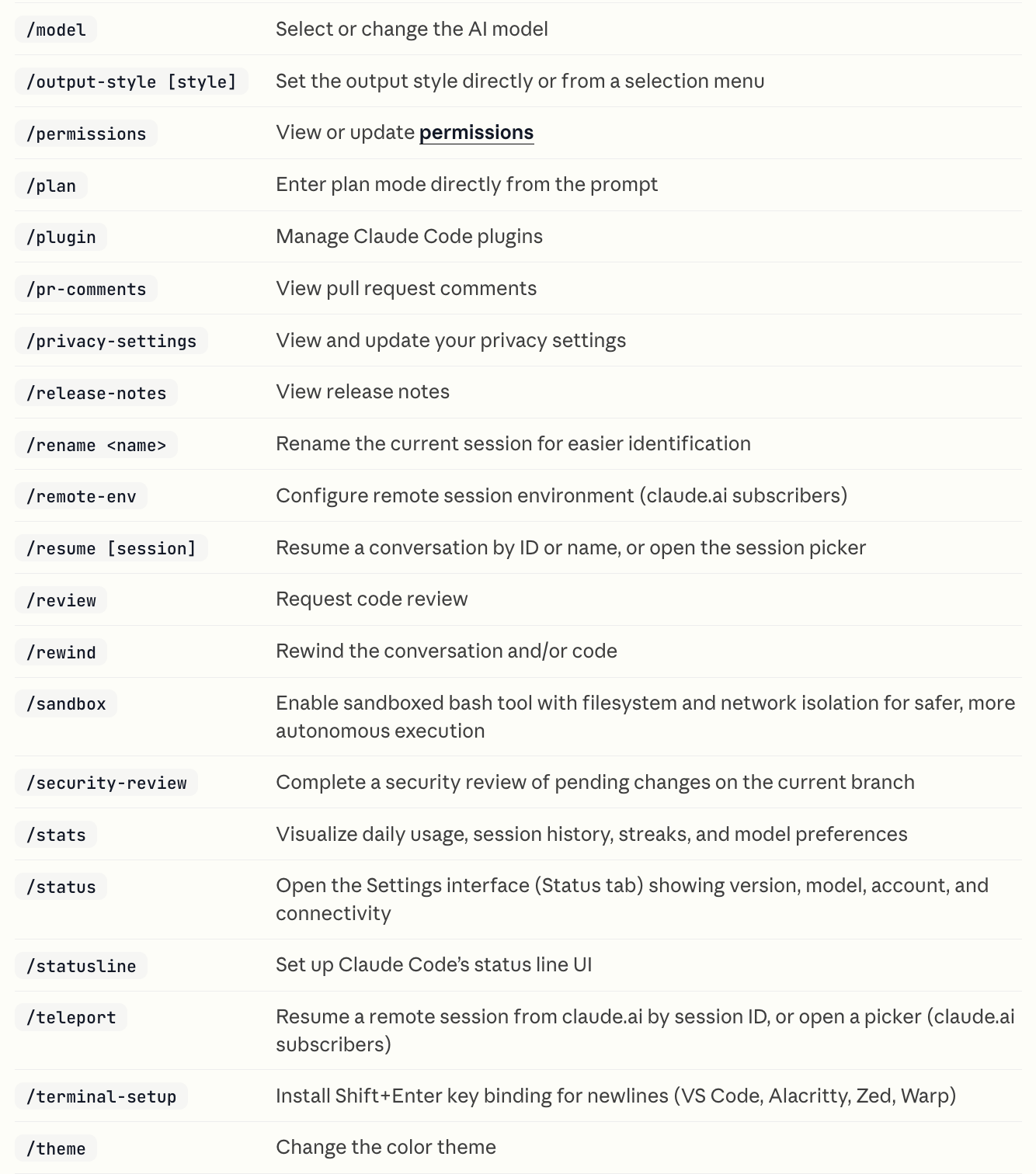

Custom slash commands
Custom slash commands allow you to define frequently used prompts as Markdown files that Claude Code can execute. Commands are organized by scope (project-specific or personal) and support namespacing through directory structures.

More: https://code.claude.com/docs/en/slash-commands#custom-slash-commands
Plugin commands
Plugins can provide custom slash commands that integrate seamlessly with Claude Code. Plugin commands work exactly like user-defined commands but are distributed through plugin marketplaces.
More: https://code.claude.com/docs/en/slash-commands#plugin-commands
MCP slash commands
MCP servers can expose prompts as slash commands that become available in Claude Code. These commands are dynamically discovered from connected MCP servers.
More: https://code.claude.com/docs/en/slash-commands#mcp-slash-commands
SlashCommand tool
The SlashCommand tool allows Claude to execute custom slash commands programmatically during a conversation. This gives Claude the ability to invoke custom commands on your behalf when appropriate.
To encourage Claude to use the SlashCommand tool, reference the command by name, including the slash, in your prompts or CLAUDE.md file. For example:
> Run /write-unit-test when you are about to start writing tests.
More: https://code.claude.com/docs/en/slash-commands#slashcommand-tool
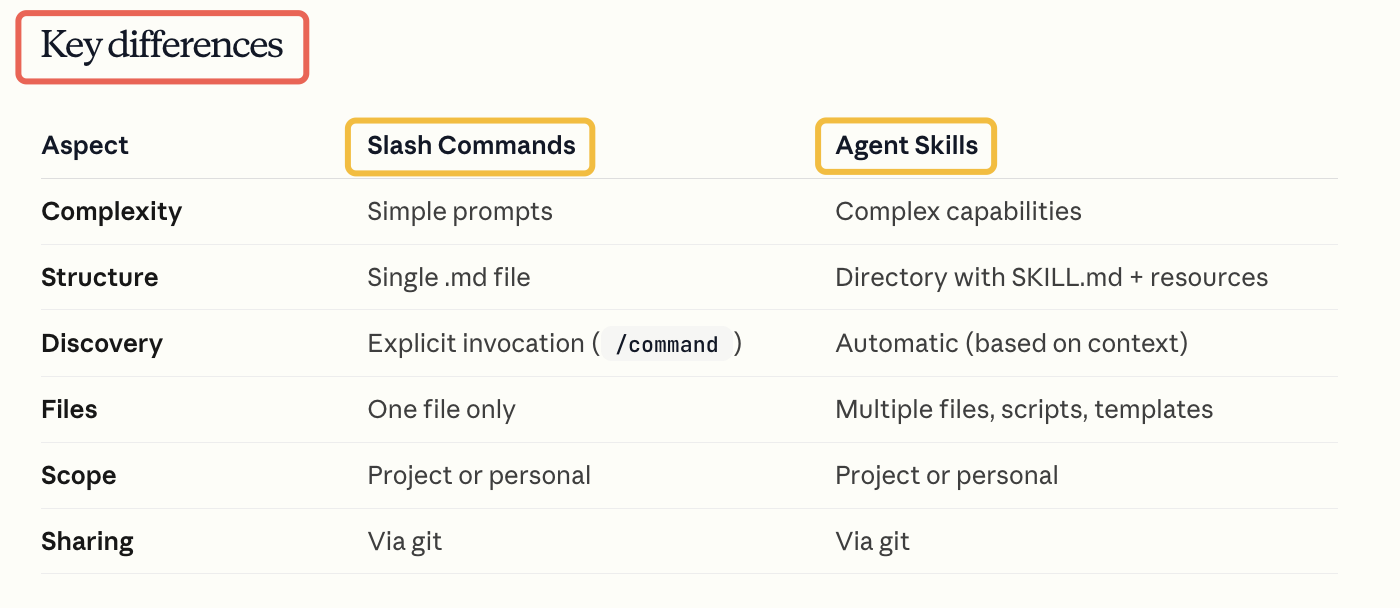
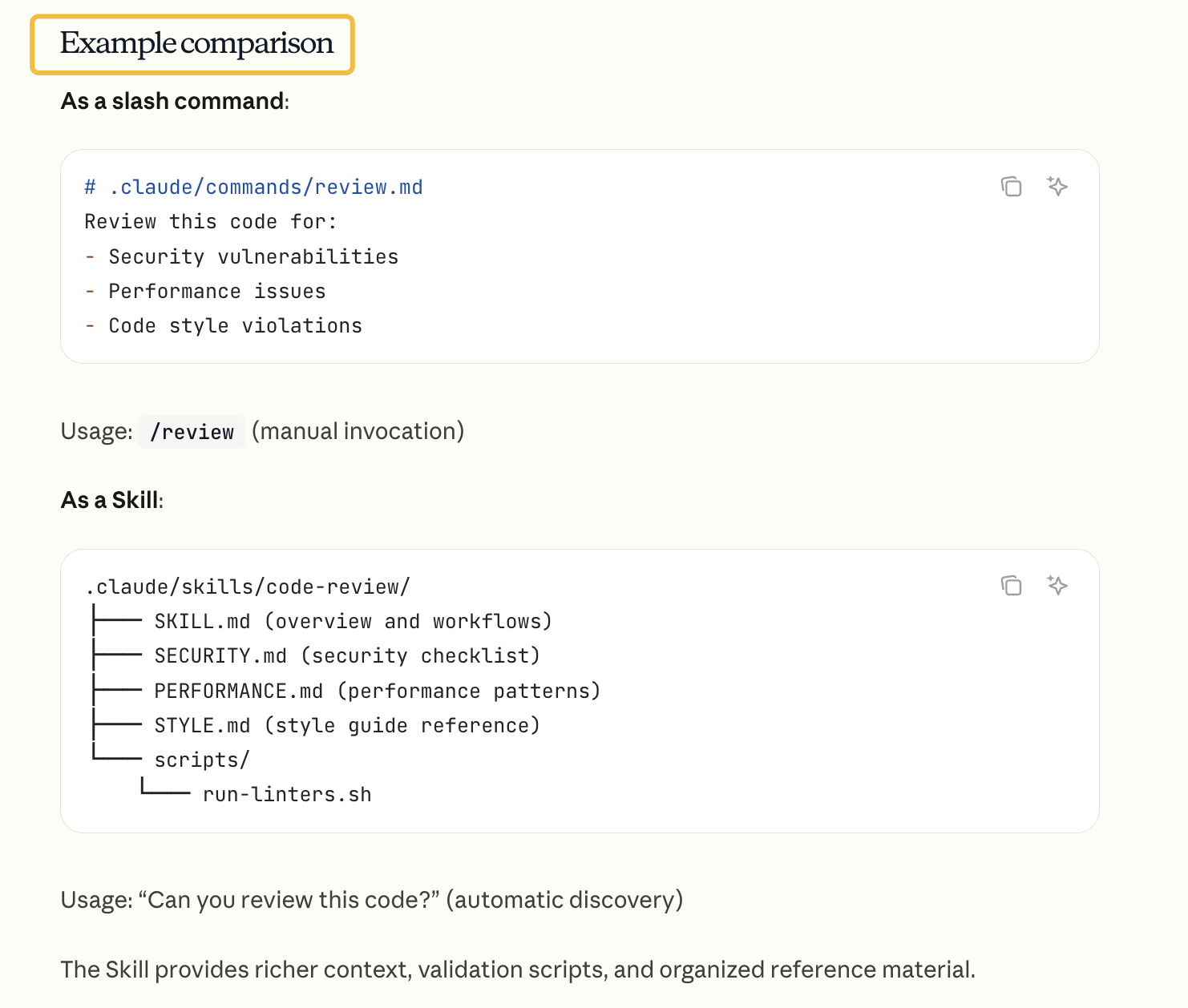
Skills vs slash commands
Slash commands and Agent Skills serve different purposes in Claude Code:
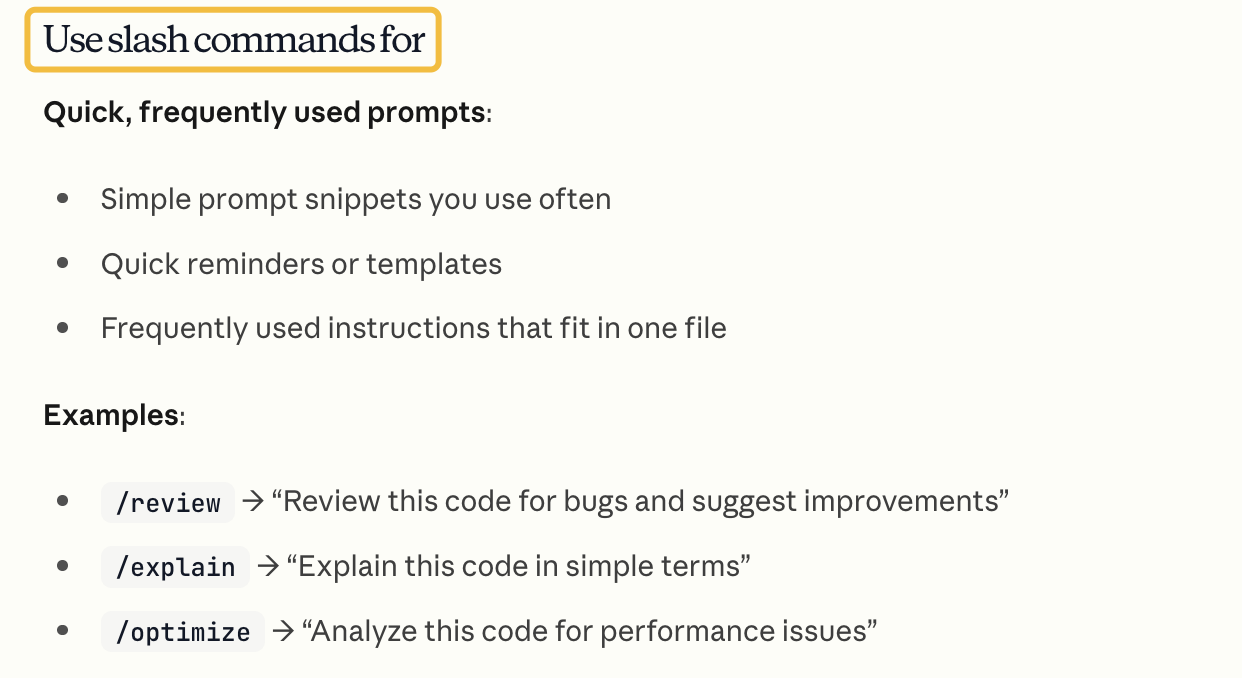
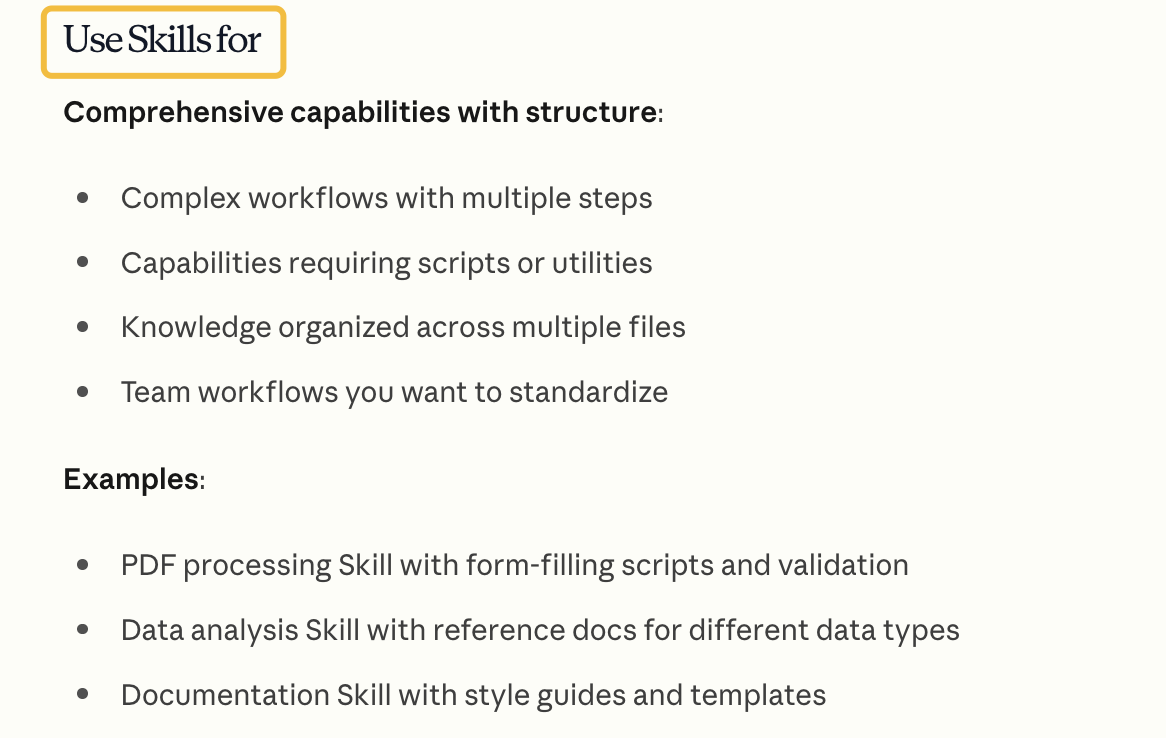

https://code.claude.com/docs/en/skills
CLI reference
参考:https://code.claude.com/docs/en/cli-reference
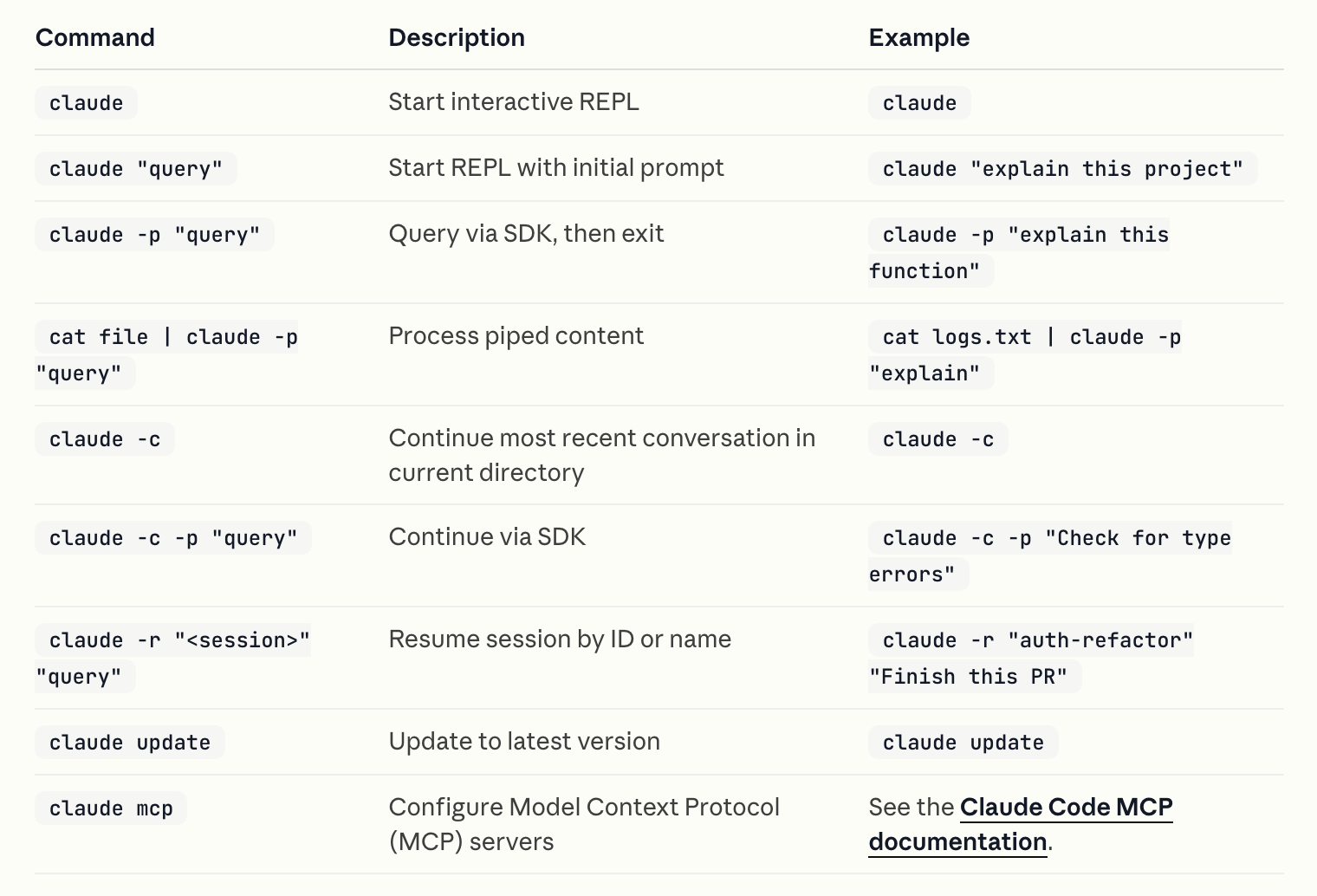
Complete reference for Claude Code command-line interface, including commands and flags.
CLI commands
CLI flags
Customize Claude Code’s behavior with these command-line flags:
--add-dir- Description: Add additional working directories for Claude to access (validates each path exists as a directory)
- Example:
claude --add-dir ../apps ../lib
--continue, -c- Description: Load the most recent conversation in the current directory
- Example:
claude --continue
--model- Description: Sets the model for the current session with an alias for the latest model (
sonnetoropus) or a model’s full name - Example:
claude --model claude-sonnet-4-5-20250929
- Description: Sets the model for the current session with an alias for the latest model (
--output-format- Description: Specify output format for print mode (options: text, json, stream-json)
- Example:
claude -p "query" --output-format json

--print, -p- Description: Print response without interactive mode (see SDK documentation for programmatic usage details)
- Example:
claude -p "query"
--resume, -r- Description: Resume a specific session by ID or name, or show an interactive picker to choose a session
- Example:
claude --resume auth-refactor
--session-id- Description: Use a specific session ID for the conversation (must be a valid
UUID) - Example:
claude --session-id "550e8400-e29b-41d4-a716-446655440000"
- Description: Use a specific session ID for the conversation (must be a valid
--system-prompt- Description: Replace the entire system prompt with custom text (works in both interactive and print modes)
- Example:
claude --system-prompt "You are a Python expert"
--tools- Description: Restrict which built-in tools Claude can use (works in both interactive and print modes). Use “” to disable all, “default” for all, or tool names like “Bash,Edit,Read”
- Example:
claude --tools "Bash,Edit,Read"
--verbose- Description: Enable verbose logging, shows full turn-by-turn output (helpful for debugging in both print and interactive modes)
- Example:
claude --verbose
Agents flag format
The --agents flag accepts a JSON object that defines one or more custom subagents. Each subagent requires a unique name (as the key) and a definition object with the following fields:
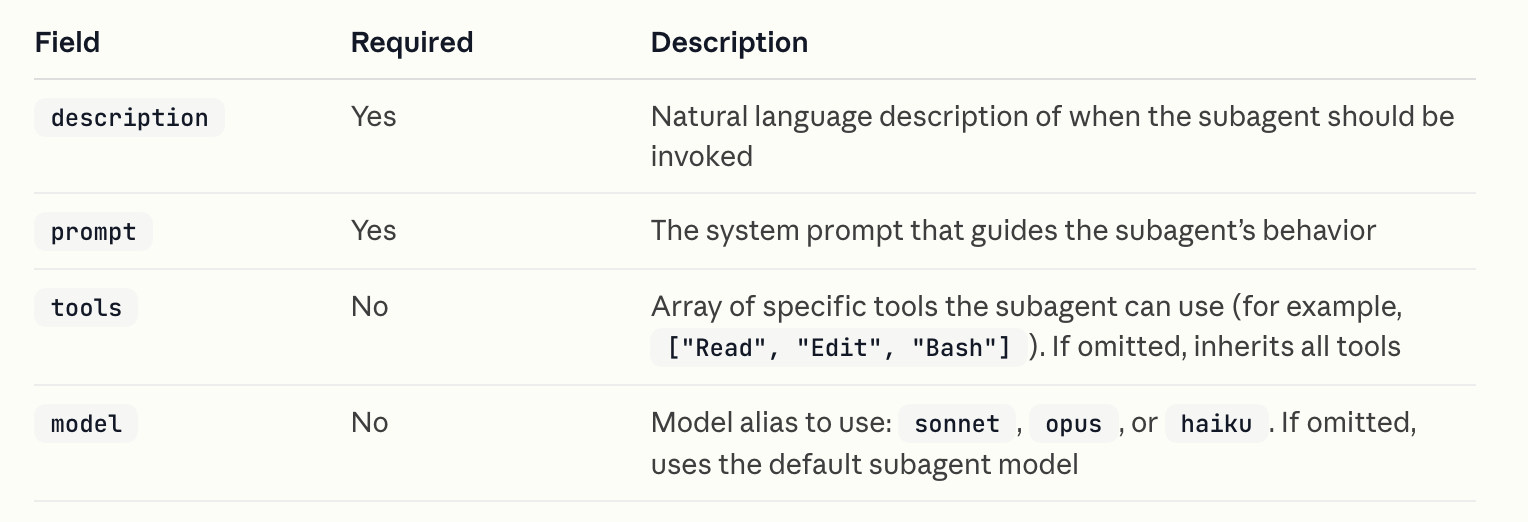
Example:
claude --agents '{
  "code-reviewer": {
    "description": "Expert code reviewer. Use proactively after code changes.",
    "prompt": "You are a senior code reviewer. Focus on code quality, security, and best practices.",
    "tools": ["Read", "Grep", "Glob", "Bash"],
    "model": "sonnet"
  },
  "debugger": {
    "description": "Debugging specialist for errors and test failures.",
    "prompt": "You are an expert debugger. Analyze errors, identify root causes, and provide fixes."
  }
}'
For more details on creating and using subagents, see the subagents documentation.
System prompt flags
Claude Code provides three flags for customizing the system prompt, each serving a different purpose:
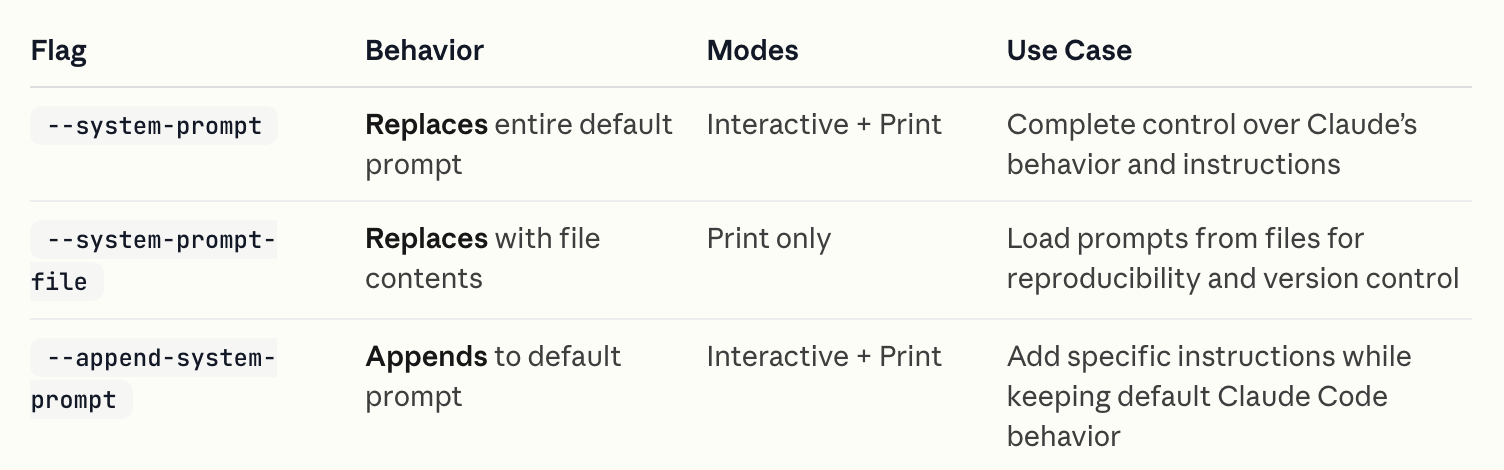
When to use each:
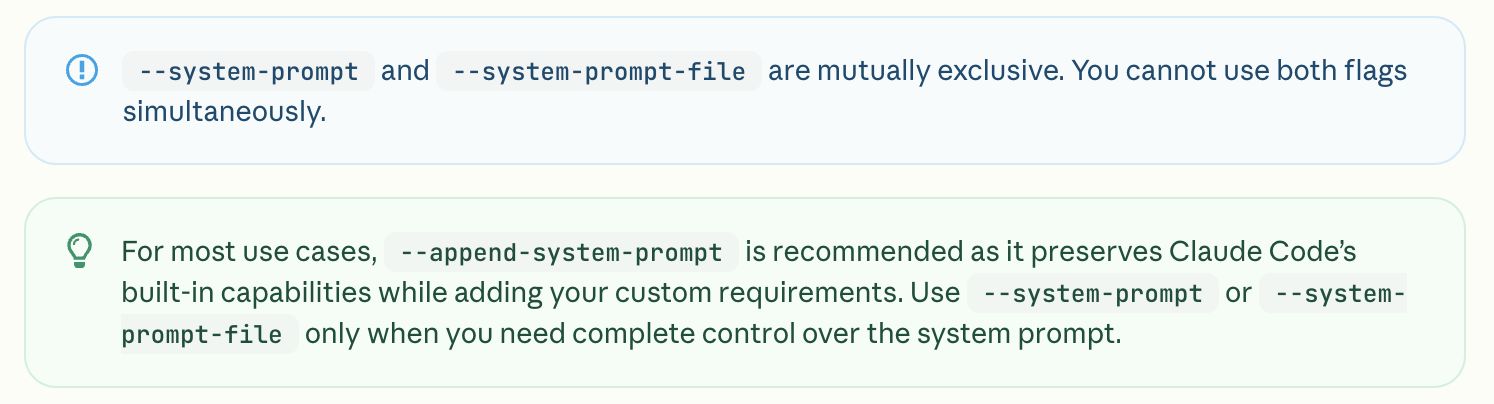
--system-prompt: Use when you need complete control over Claude’s system prompt. This removes all default Claude Code instructions, giving you a blank slate.
claude --system-prompt "You are a Python expert who only writes type-annotated code"
--system-prompt-file: Use when you want to load a custom prompt from a file, useful for team consistency or version-controlled prompt templates.
claude -p --system-prompt-file ./prompts/code-review.txt "Review this PR"
--append-system-prompt: Use when you want to add specific instructions while keeping Claude Code’s default capabilities intact. This is the safest option for most use cases.
claude --append-system-prompt "Always use TypeScript and include JSDoc comments"
Claude Code MCP
参考:https://code.claude.com/docs/en/mcp
Subagents
参考:https://code.claude.com/docs/en/sub-agents
Create and use specialized AI subagents in Claude Code for task-specific workflows and improved context management.
Custom subagents in Claude Code are specialized AI assistants that can be invoked to handle specific types of tasks. They enable more efficient problem-solving by providing task-specific configurations with customized system prompts, tools and a separate context window.
Agent Skills
参考:https://code.claude.com/docs/en/skills
Create, manage, and share Skills to extend Claude’s capabilities in Claude Code.
Q&A
国家地区访问限制问题
如果没有清除以下 Anthropic 相关的环境变量,就会提示使用限制的提示:
unset ANTHROPIC_AUTH_TOKEN
unset ANTHROPIC_BASE_URL
Claude Code might not be available in your country. Check supported countries at https://anthropic.com/supported-countries

使用参考
- 国产大模型接入 Claude Code 教程:以 Doubao-Seed-Code 为例
- My Experience With Claude Code After 2 Weeks of Adventures (17 Jul, 2025)
- A Guide to Claude Code 2.0 and getting better at using coding agents (28 Dec, 2025)
Changelog
https://github.com/anthropics/claude-code/blob/main/CHANGELOG.md
Refer
- https://www.anthropic.com/claude-code
- https://github.com/anthropics/claude-code
- https://docs.anthropic.com/en/docs/claude-code/overview
- https://platform.claude.com/cookbooks